Reference
As geometry often is replaced by using the Bake component, or by modelling manually, it is important to maintain a robust relationship between the objects in Rhino and your Grasshopper definition. To achieve that, eleFront has introduced Reference Components. These components will read the attributes of all objects present in the current Rhino model and output only the ones that meet specific criteria. These criteria could be the BakeName that was specified for the component with which these objects were created, or for instance the object layer, but also any of the UA. You can reference objects that have a specific Key assigned, or that have a specific Key and Value pair assigned.
There are several modes of Referencing offered by eleFront that will serve their purpose in different circumstances, which will be explored in this section.
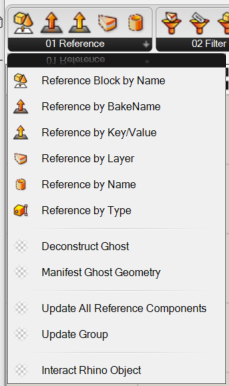 Reference components available in the "01 Reference" tab
Reference from BakeName
There are several methods to dynamically reference objects using eleFront, but perhaps the first and most robust method that a user may encounter is Reference by BakeName. Within a project’s ecosystem, BakeNames are the main way in which an output is expressed within each file, it can be thought of as an overview of the baked geometry.
Example
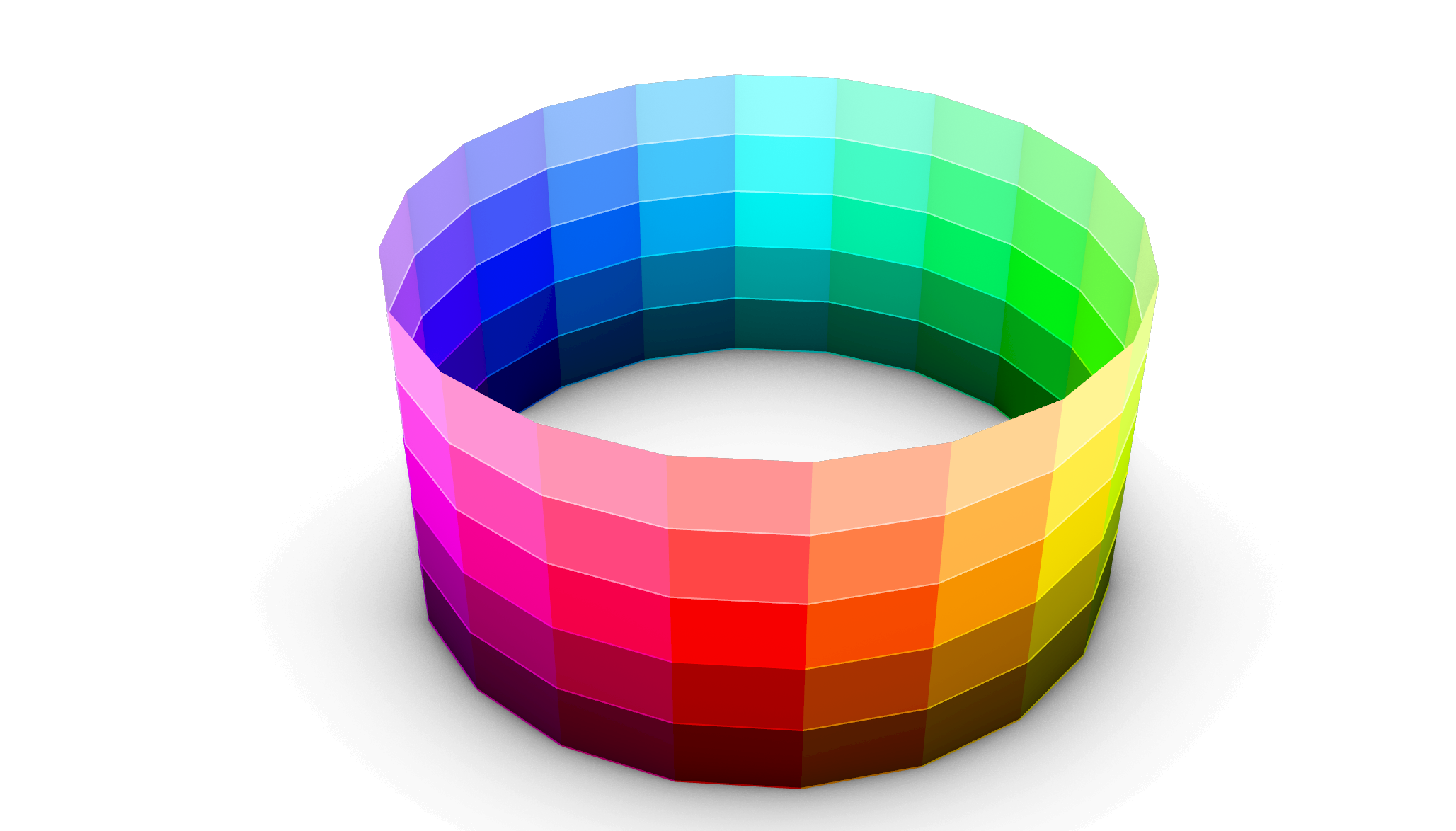 A panelised form split into different layers
In the example above we have a simple, attributed Rhino model containing both surfaces, representing panels, and curves, representing a bottom edge, each panel is on a different layer.
By selecting a range of surfaces and interrogating the eleFront Attributes, we can gather that the BakeName for the surfaces and edges are most likely to be "MyBakeName::Panels" and "MyBakeName::Curves", respectively.
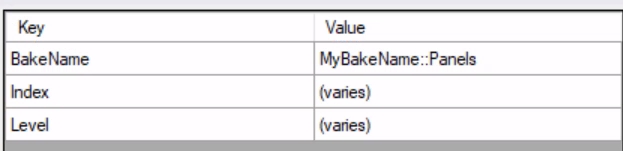 eleFront attributes from selecting multiple surfaces
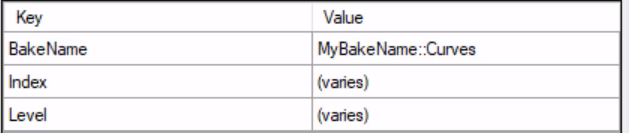 eleFront attributes from selecting multiple curves
To reference the geometry, simply use the Reference by BakeName component and enter the BakeName of the objects that are required.
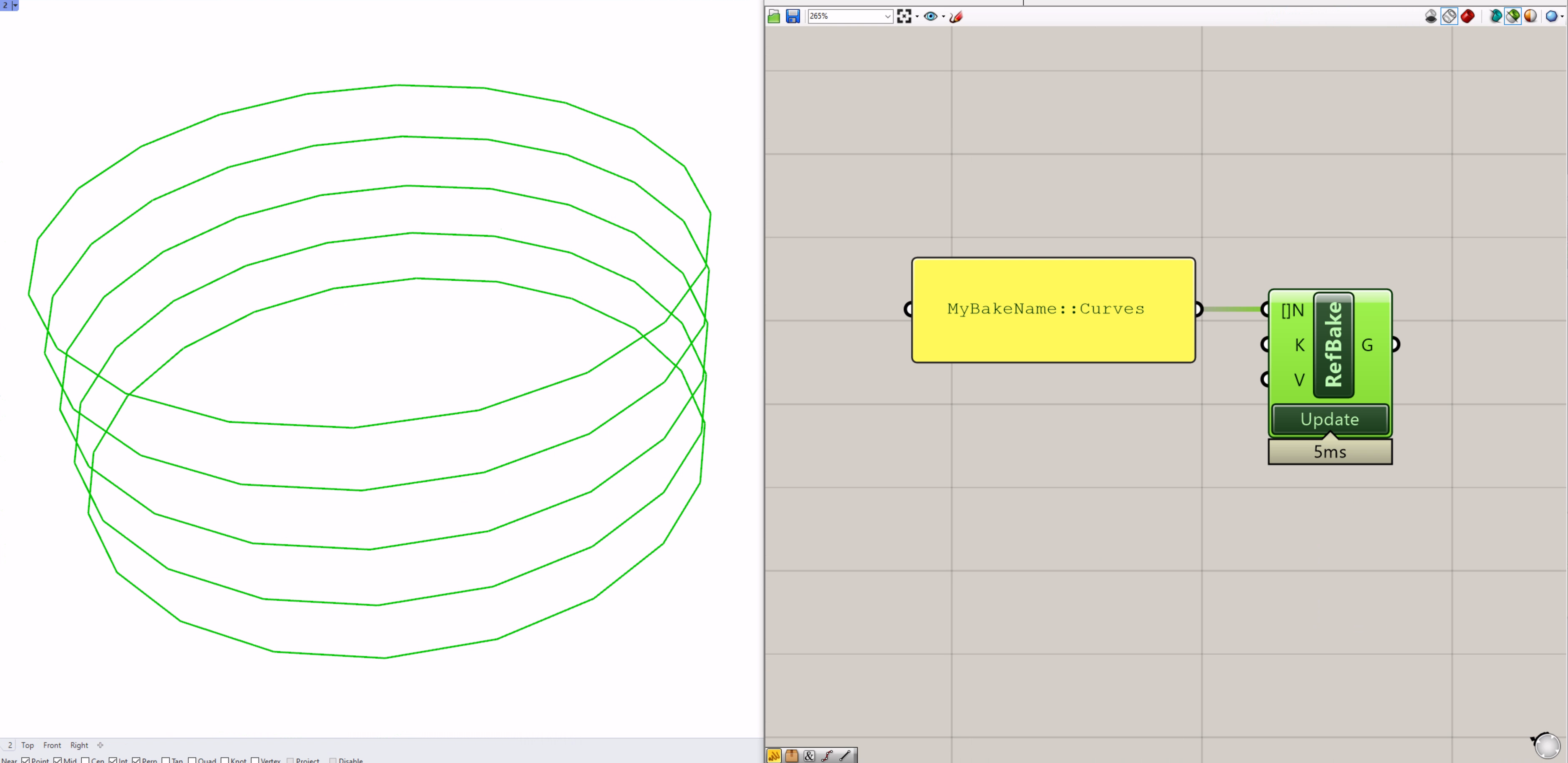 Using the BakeName input for the
 Reference by BakeName component
A key/value pair can be used to filter objects that come under the same BakeName
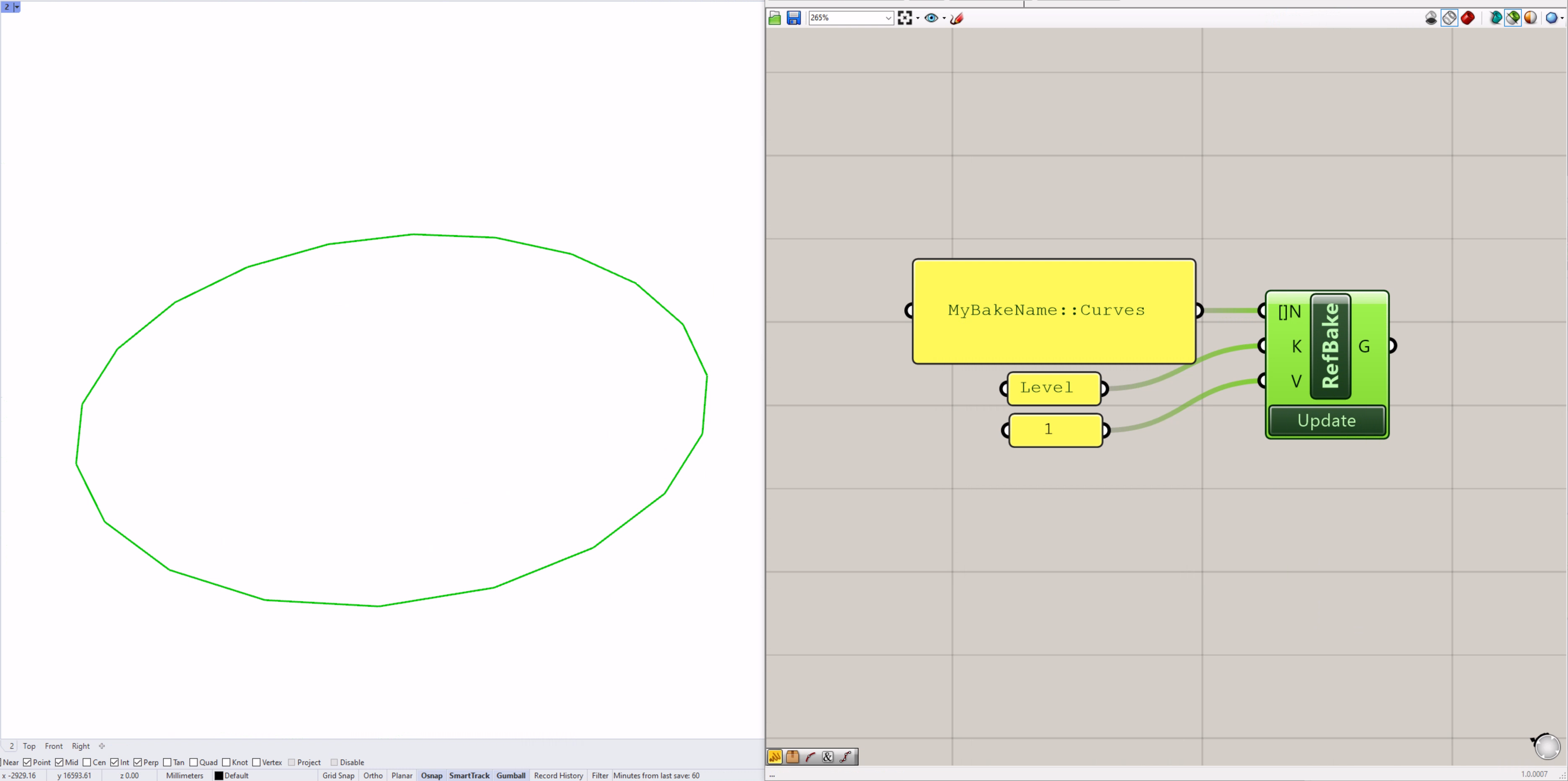 Using a Key/Value pair in conjunction with the BakeName
Troubleshooting
Even though in this case, there is one BakeName that covers all surfaces, and one for all the edges, sometimes we cannot be certain of exactly what geometry is covered by which BakeNames. Parts of the model may have been baked separately from others if a different bake component was used for whichever reason in the reference model. There are a few different ways of interrogating the model for the BakeNames present:
- Interrogating the script that produced the reference model can be helpful, however the script may have changed since that geometry was baked, or other geometry may have been merged into the export file
- Referencing all with a wildcard (tread carefully in large models) and creating a set of all the models - in this example, an asterisk is used to search all the geometry and then all that contains the same stem
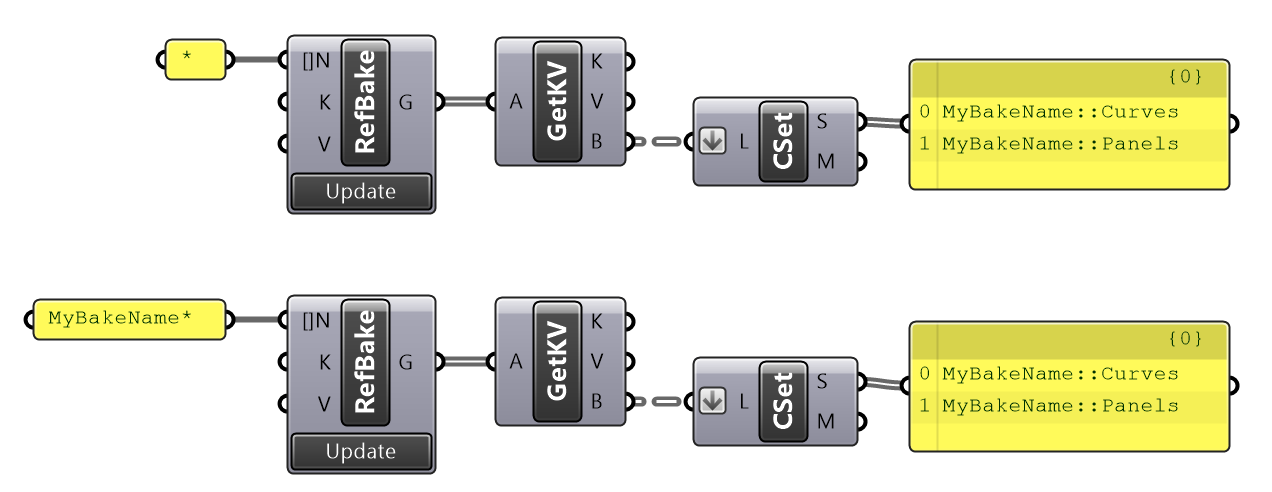 A couple of methods to check BakeNames present in the document
Alternative Reference Modes
While Reference by BakeName is often the preferred mode of referencing with eleFront due to the advantages listed above, there may be instances where this is not possible, or another option is advantageous. eleFront offers a variety of options to collect the right
Reference by User Attributes
Refernce by User Attributes return geometry that matches a key/value pair, irrespective of BakeNames - which can be useful when creating assembly models, or other instances where the BakeName is not relevant or present
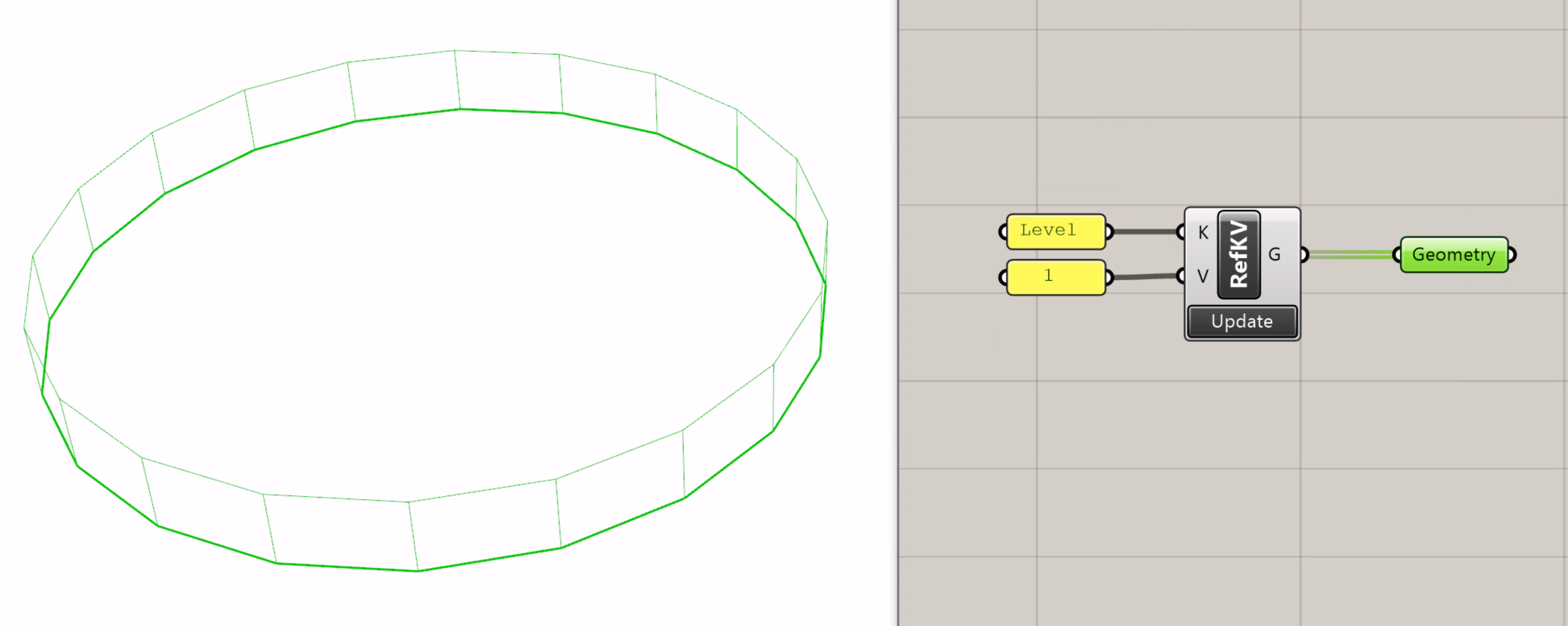 Reference by User Attributes
Reference by Layer
In processing geometry without BakeNames or User Attributes present, such as models imported from AutoCAD or Revit and survey data, Reference by Layer can also prove useful. The component will return results that match the layer specfied
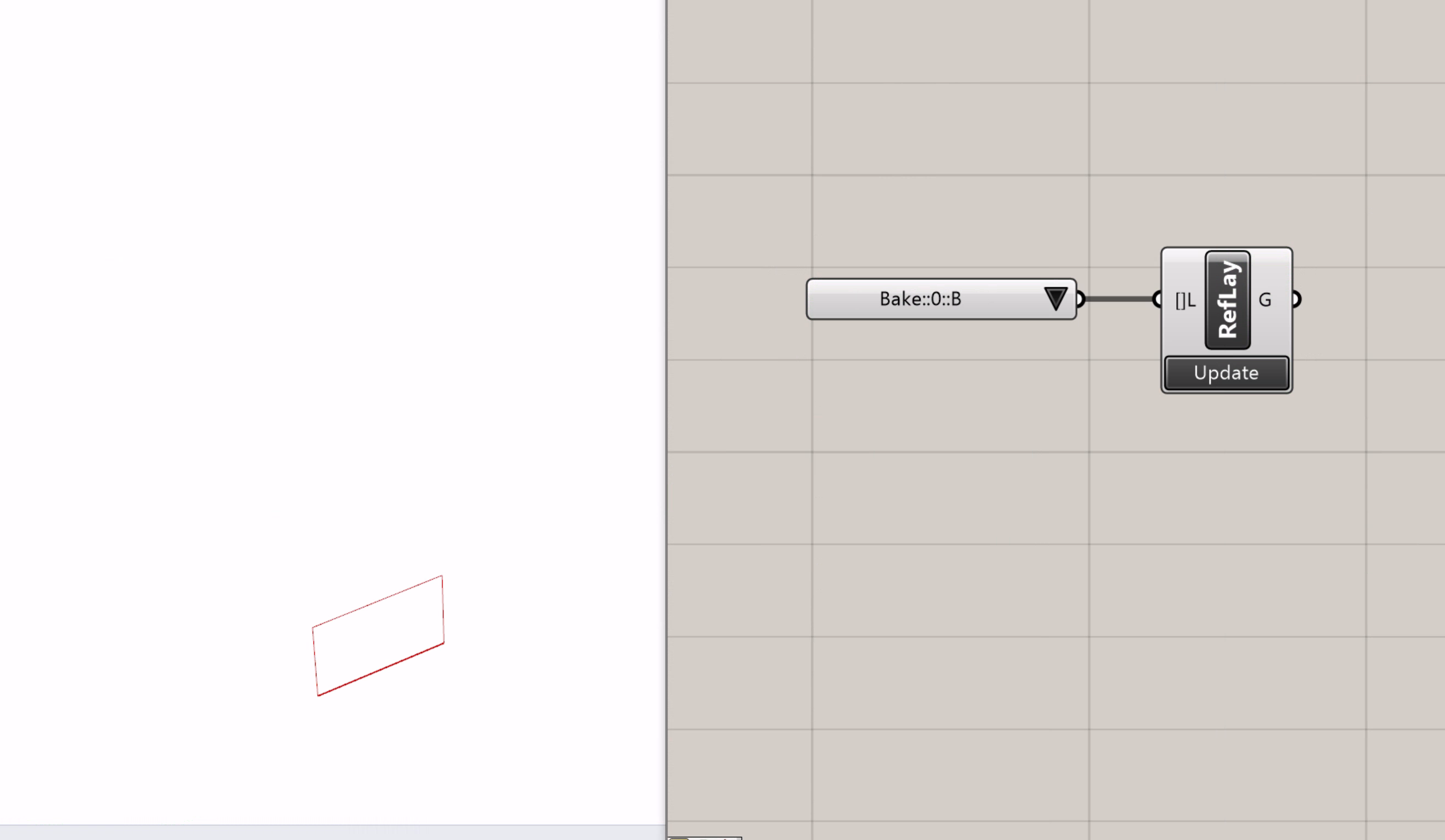 Reference by Layer
The input will also accept wildcards
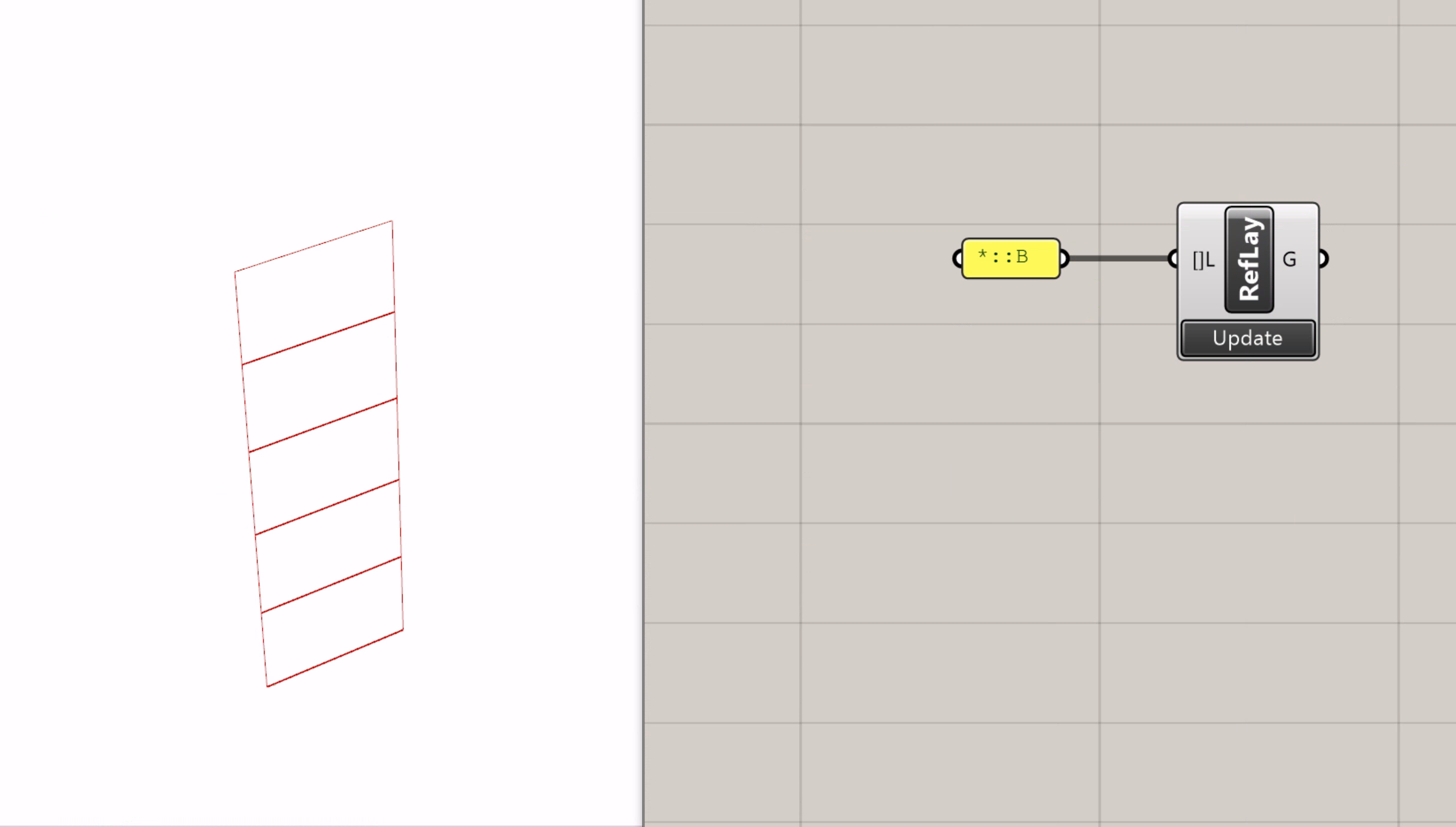 Using a wildcard for the
 Reference with Layer component
Reference by Type
Reference by Type will return all objects present in the Rhino document that match that object type
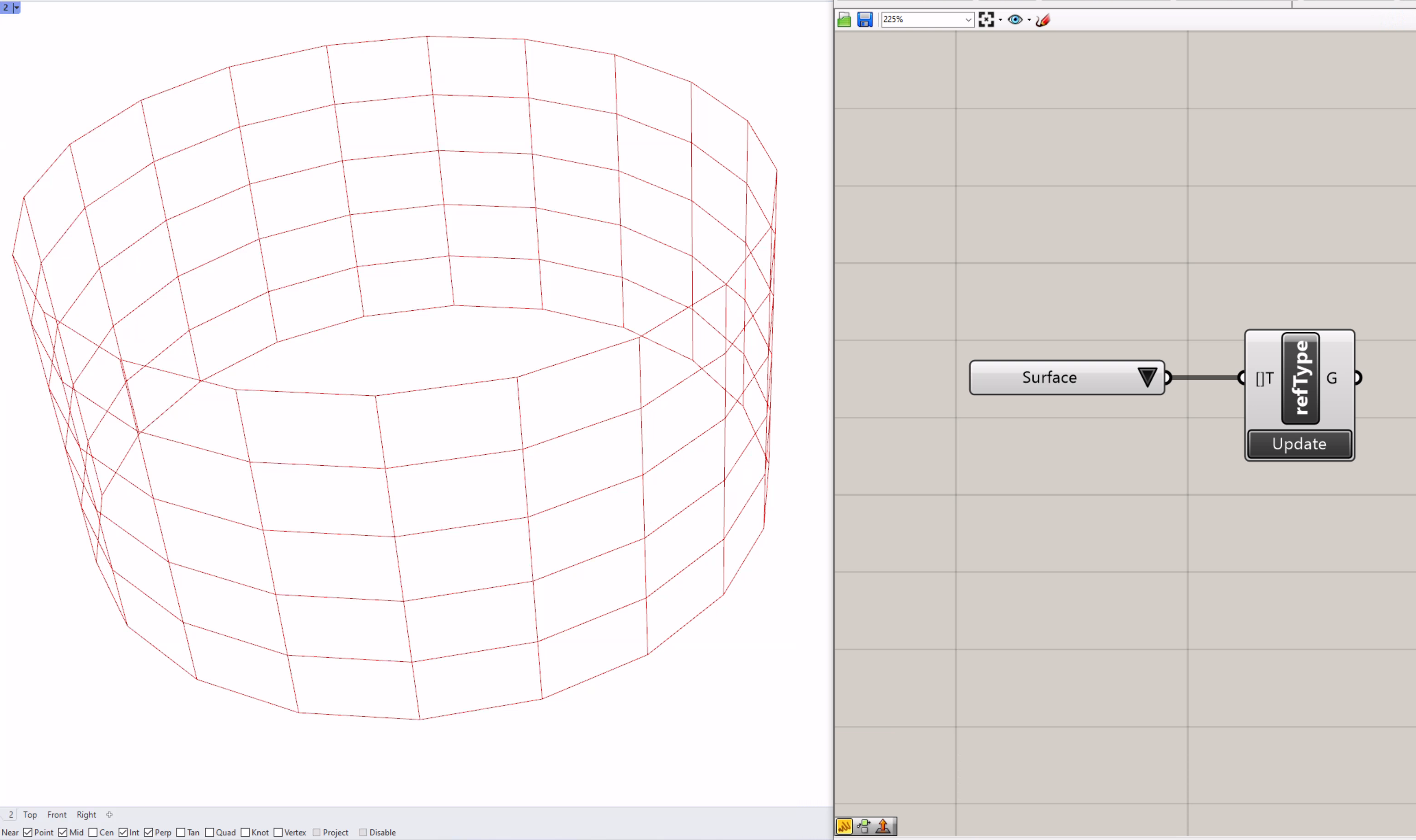 Reference by object type
Plugging in a Value List component will autopopulate it with all the possible options for object types. Some of these may overlap - selecting Breps will include both Surfaces and Polysurfaces, likewise Curves and Arcs - so it is worth considering how to be specific with the type specified.
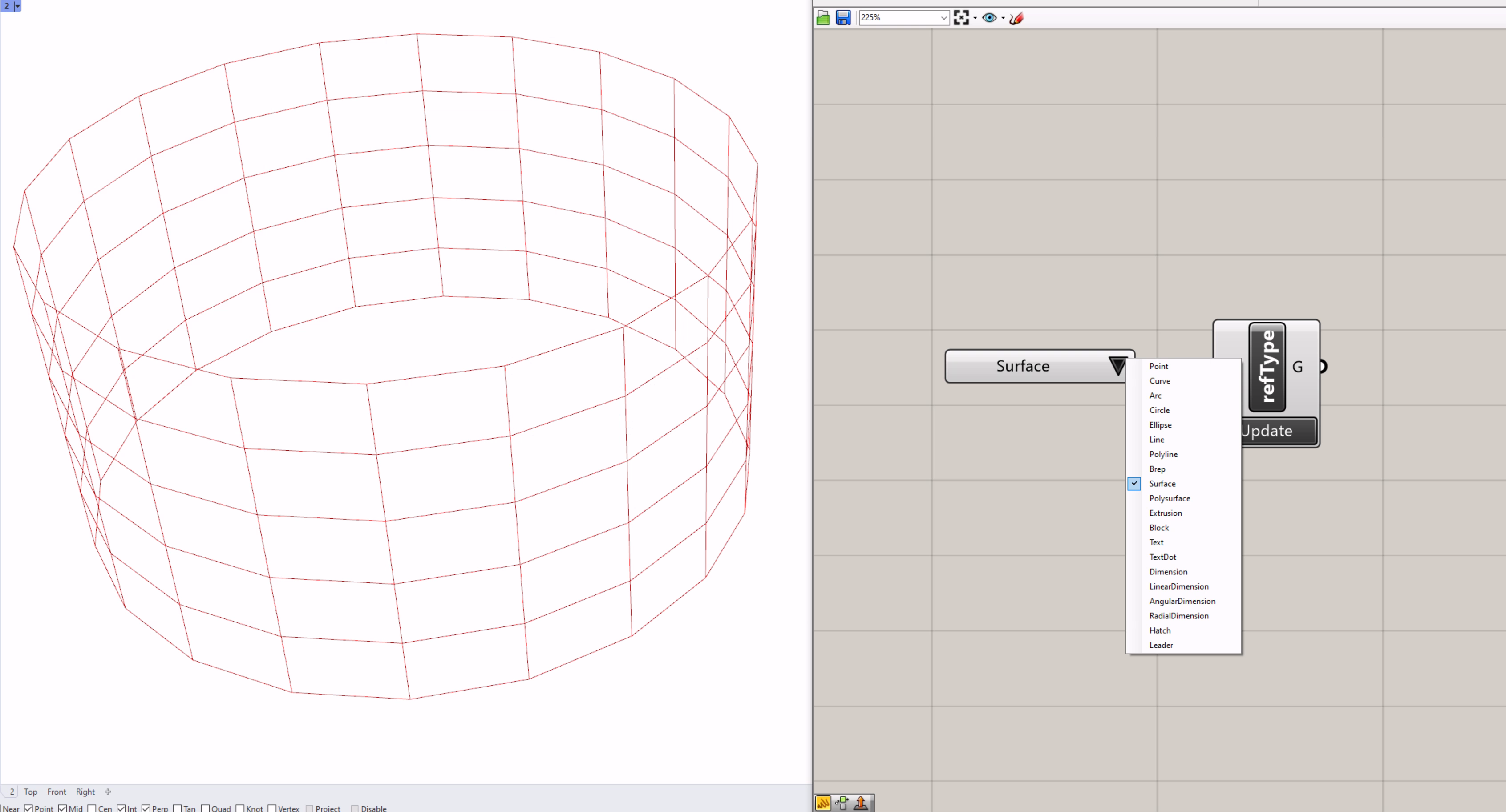 Using a
 Value List component will autopopulate with the available options
Reference by Name
Reference by Name will return geometry that matches the object name (as found in the Rhino Objects tab) provided.
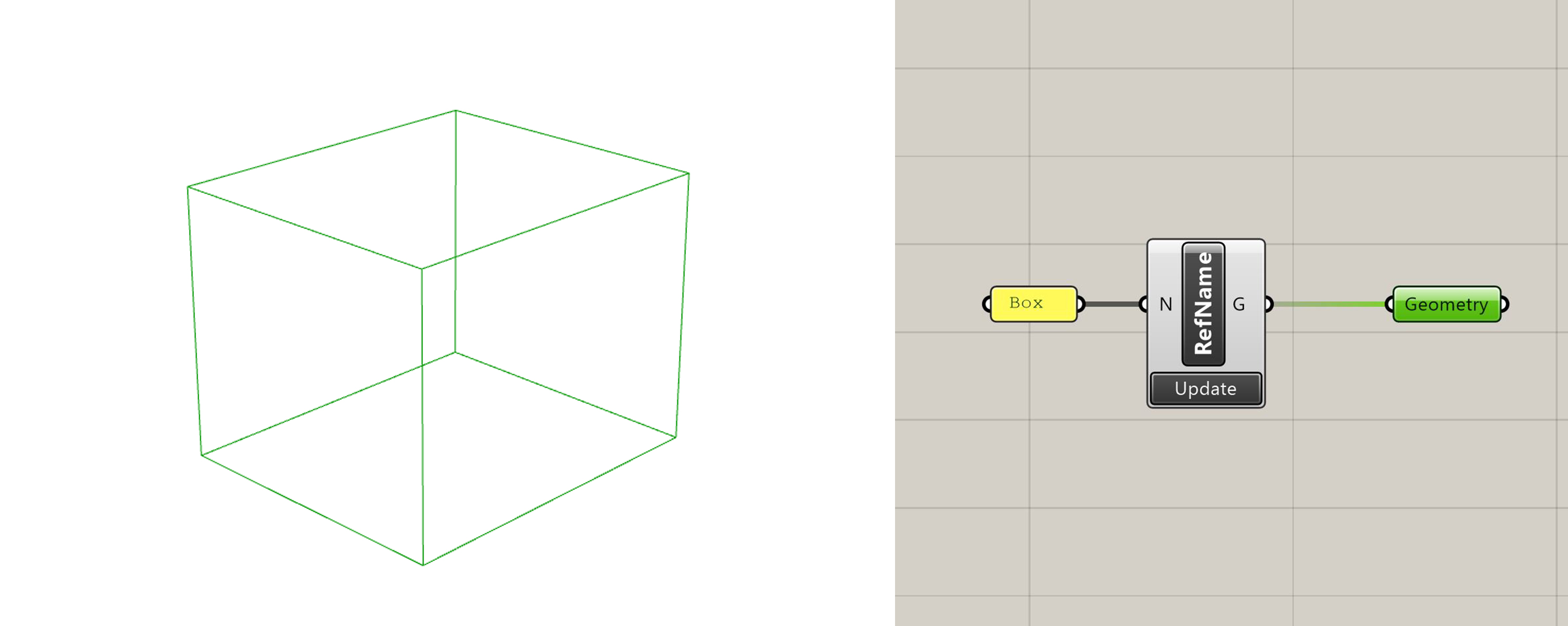
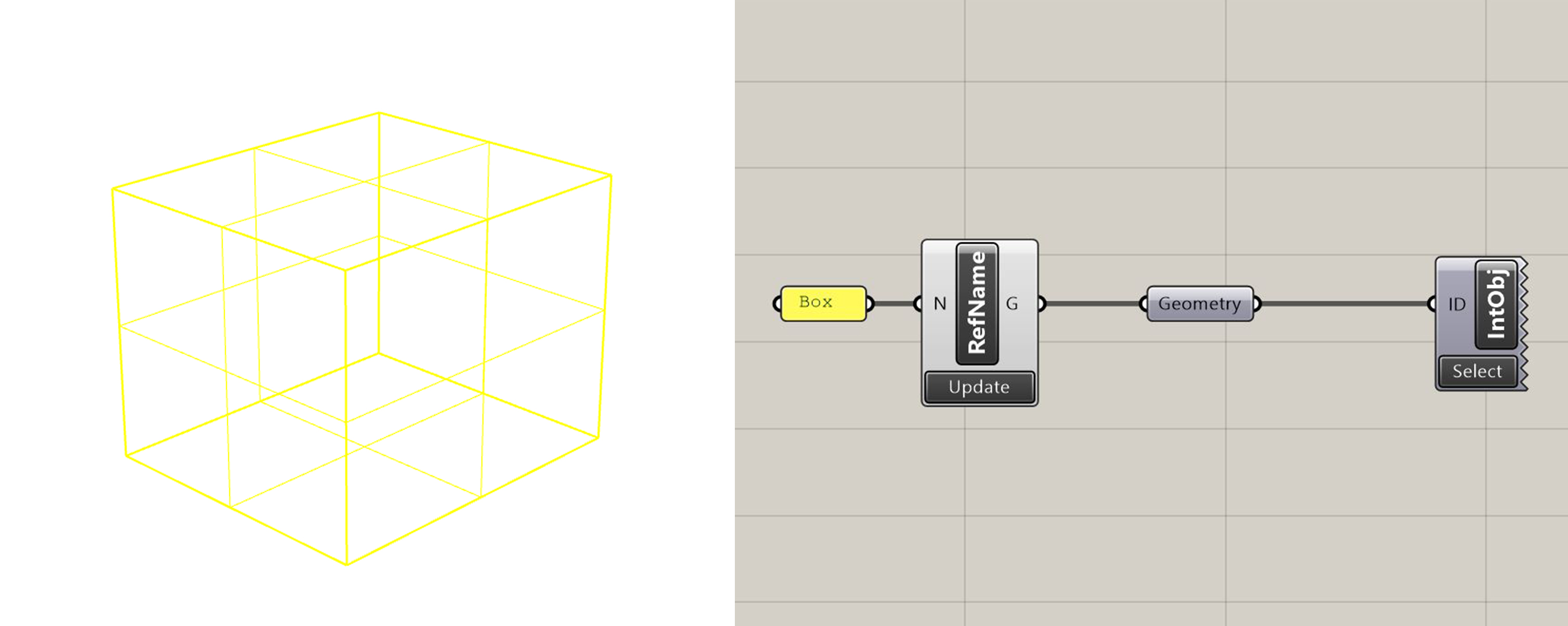
Interact Rhino Object
Allows users to interact with objects from the Rhino Document. The default interaction is to select; right click to toggle between hide, show or isolate. Provide the component with the GUID of the objects and activate to perform the interaction.
Reference from File
Referenced geometry from the Worksession forms the basis of much of the workflows in eleFront, however, there are some helpful exceptions. In some cases, geometry will be made from scratch, either in the active file or within Grasshopper itself. Users may also take advantage of the FilePath input on RefBake (zoom into the component and click the Insert Parameter). We can reference in Rhino files that we know will be static, while using the FilePath input to reference only the files you need in that instance. For example, if a model was split by level, instead of wasting time and slowing down Rhino by loading up every version of that model, we could set the FilePath input only as the specific Level/s that we wish to interrogate. As models get more complex and with a greater number of interactions, Worksession management becomes a key consideration in maintaining usability.
The below image shows two methods of referencing from an external file. The top method is slower (see the processing time on the Reference by BakeName component) since all files in the folder are being searched, but more robust because they are filtered by User Attributes. The second method uses file naming conventions to filter through the files in the folder before passing through the Reference by BakeName component. A robust file naming convention set up project-wide can be helpful for this very reason.
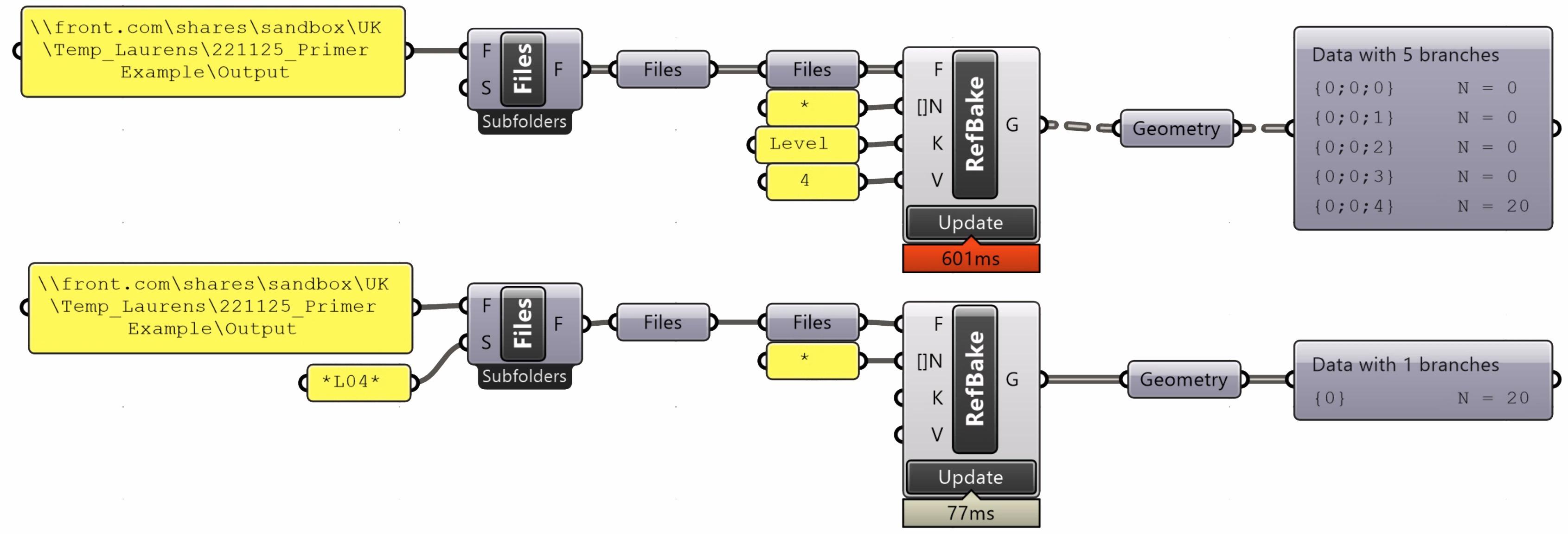 Two methods for referencing geomtry from an external file
Ghost Geometry
In some workflows, it is not always necessary to operate on the geometry of an object. Perhaps you are simply looking to access the object's attributes or filter through your objects before copying them into another file.
For such cases, we have introduced an option called "Ghost Geometry", which allows you to bring an item into Grasshopper that only preserves the information about that object while leaving the geometry behind. It does include a bounding box preview, as a way to give yourself a sense of where your items are.
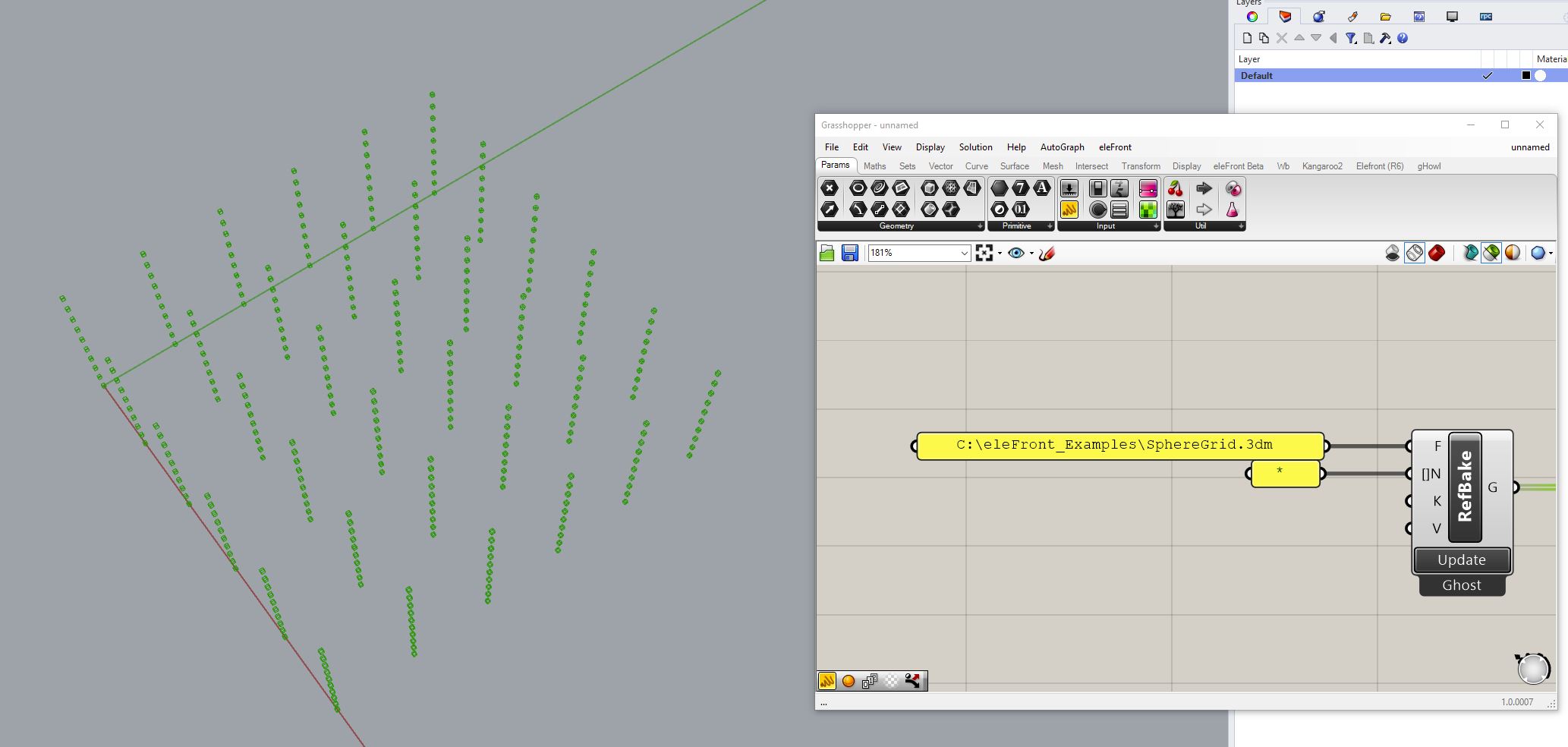 Previewing Ghost Geometry
In avoiding loading the full preview of the geometry, the Grasshopper file uses far less memory than with regular referencing, see the Memory Management section for more details. %%add a link to the memory section&&%%
Ghost Geometry can still be interrogated in several ways:
- Since it maintains the attributes of its parent object, Ghost Geometry can be sorted and filtered as normal.
- The source file and original GUID can be found by using the Deconstruct Ghost component.
- Once the geometry has been filtered, it may be that you would like to operate on the remaining geometry, this can be done using the Manifest component. You get all the Memory saving advantages of Ghost Geometry with the functionality of all the normal geometry.
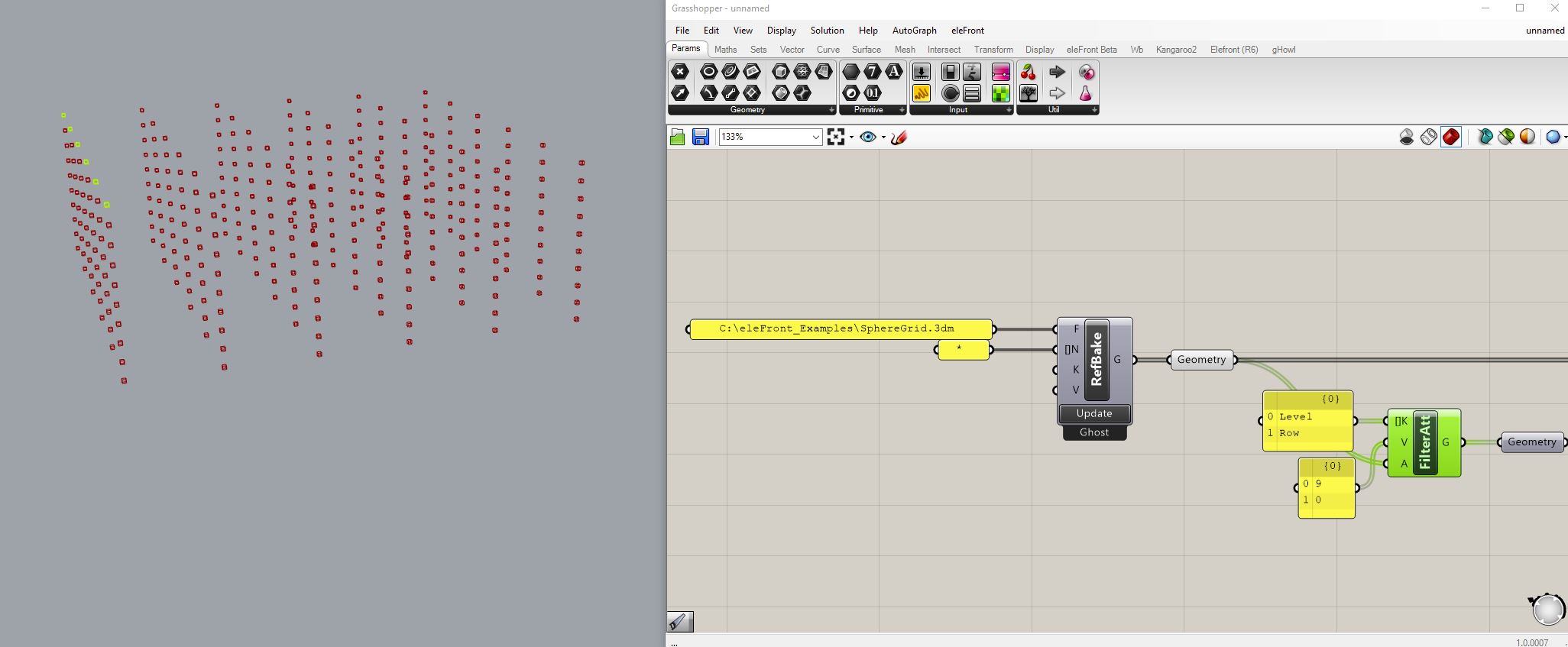 Filtering Ghost Geometry
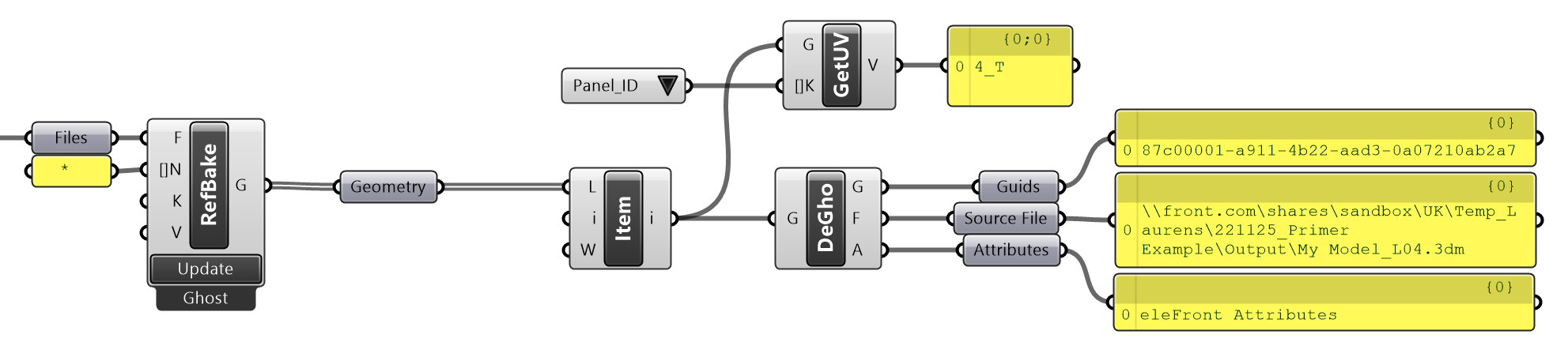
Deconstructing Ghost Geometry
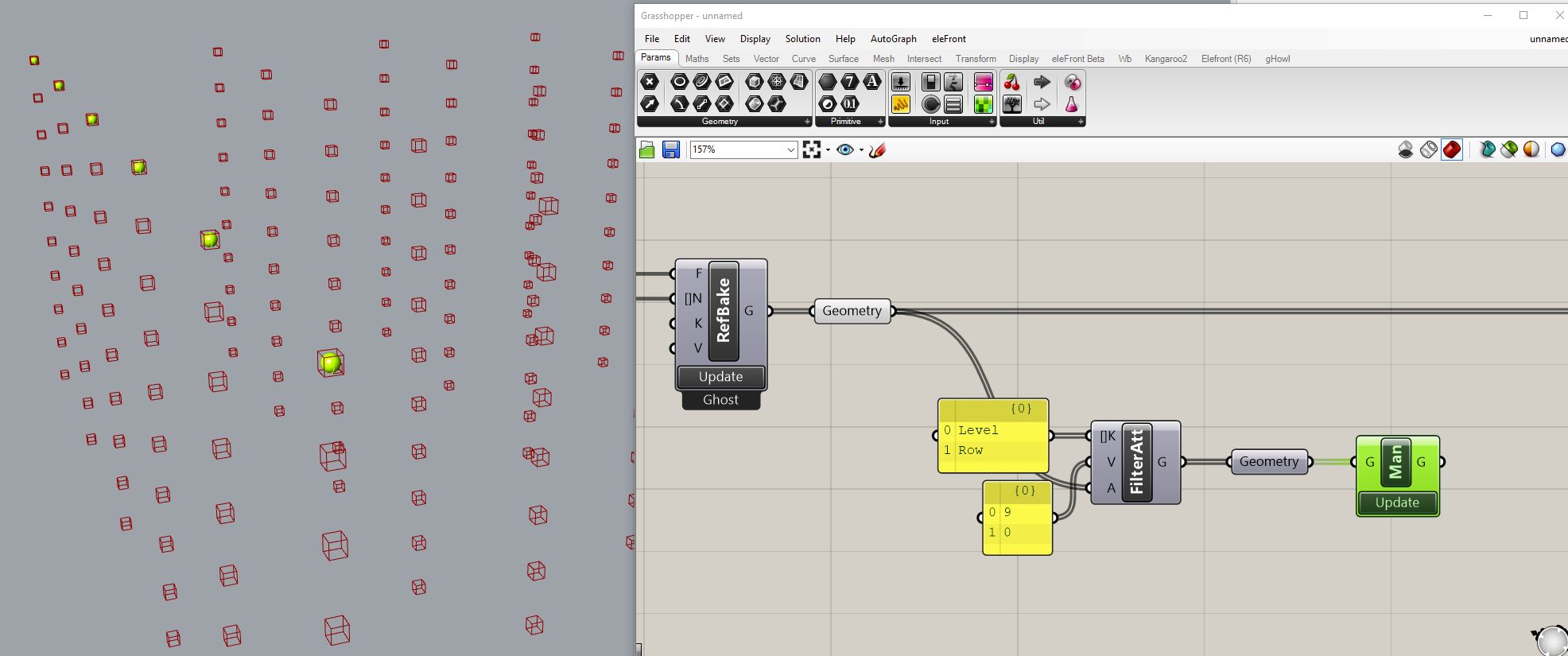 Manifesting Ghost Geometry