Files
eleFront provides a suite of tools that allow the user to export to, merge, modify, and get information about external files directly from within Grasshopper. Here's a breakdown of the components available.
Export to Folder
Exporting geometry to separate files has the benefit of organizing and batching models into manageable file sizes while ensuring that the file contains exactly the geometry intended.
We can export to folders using two components, Export Generic and Export to Rhino File.
Note To help with QC, make sure that the geometry you wish to export is visible and unlocked before exporting.
Export Generic
Export Rhino objects by GUID to any file type that supports rhino. Requires a destination file path and the GUIDs of the objects to be exported as inputs. For each branch of the inputs a separate file will be created.
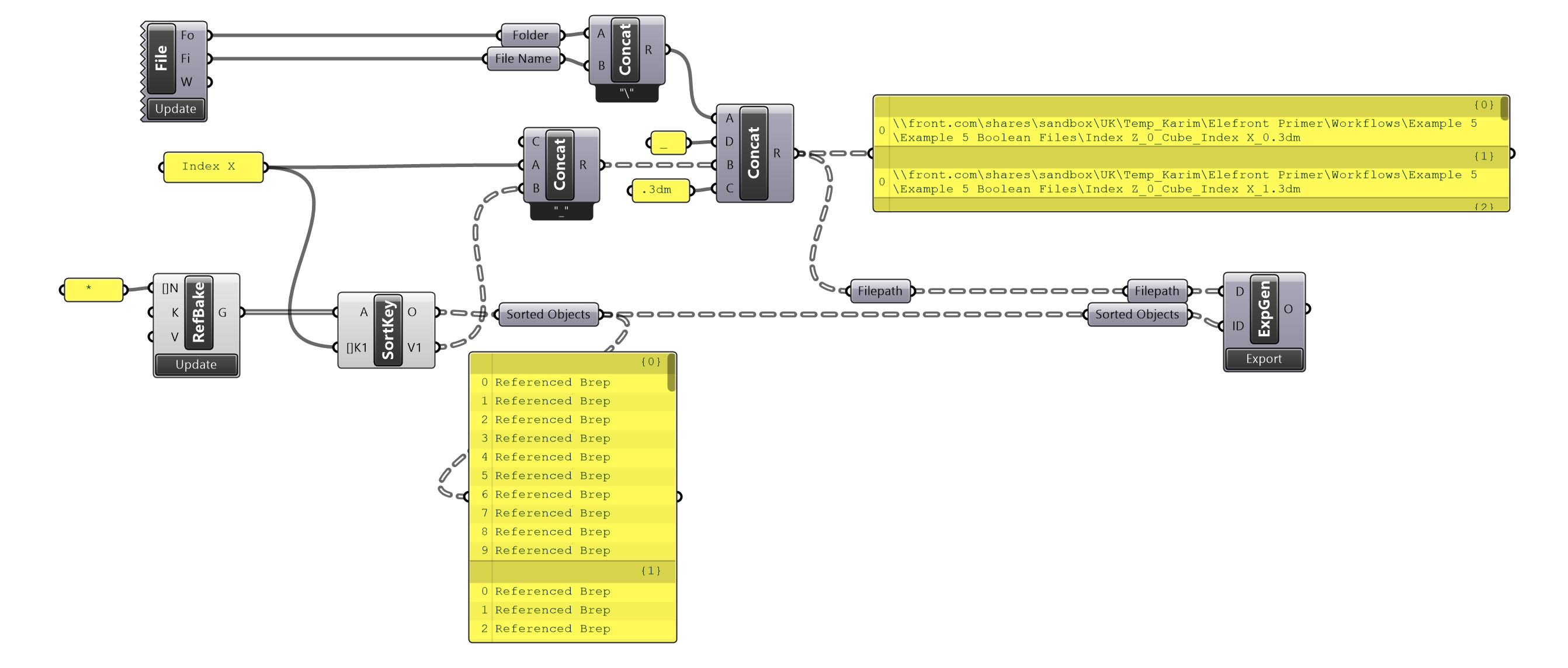
Export Generic
Export 3dm
Export Rhino objects by GUID to a .3dm file. Requires a destination file path and the GUIDs of the objects to be exported as inputs. For each branch of the inputs a separate file will be created.
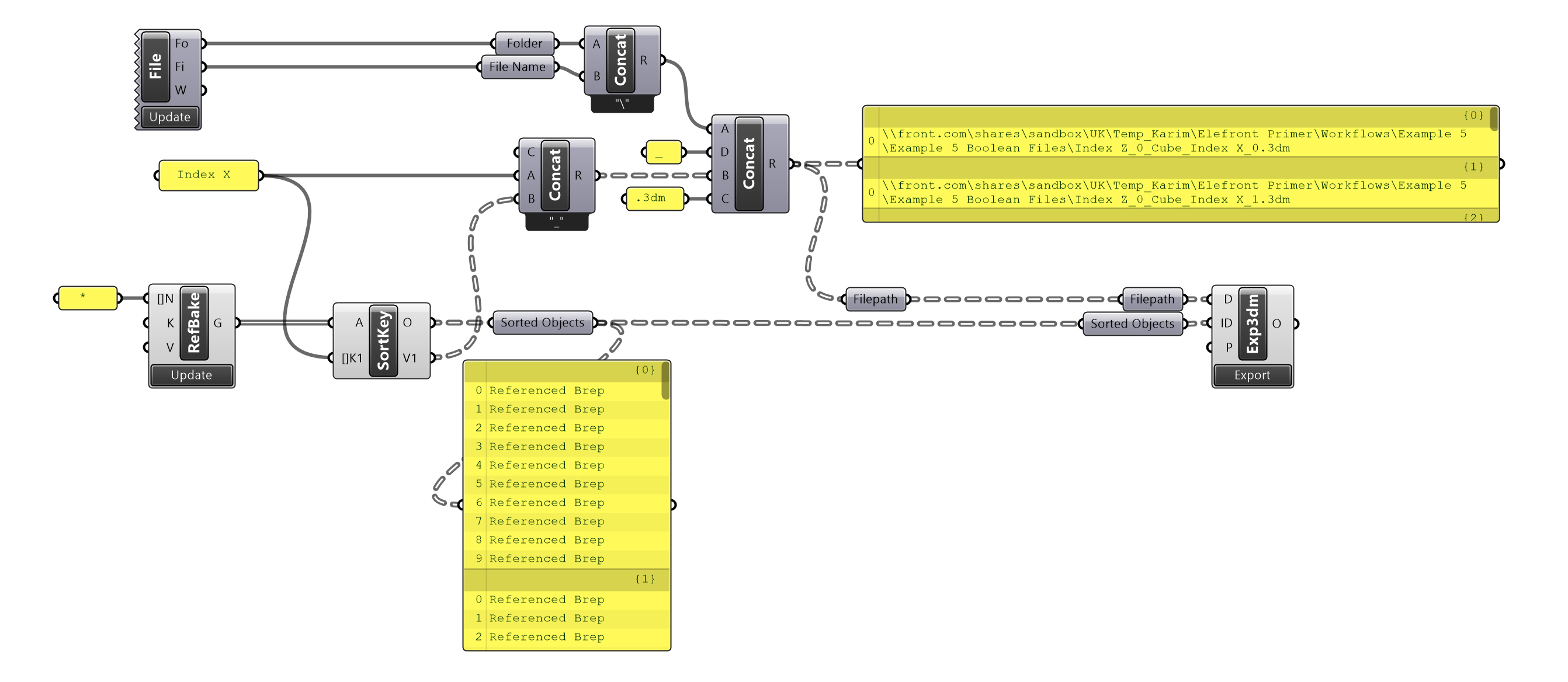
Export 3dm
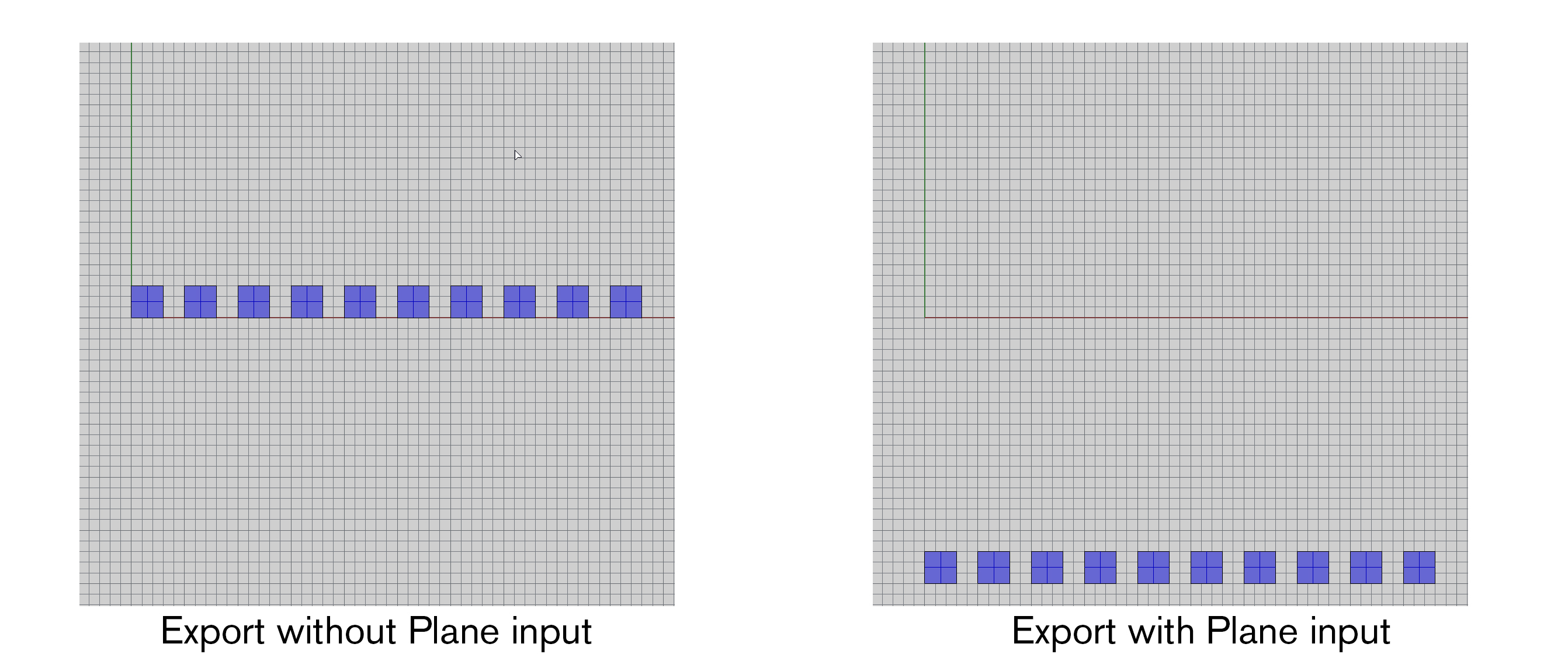
Export 3dm also allows the user to input a plane to use as the Cplane of the new file.
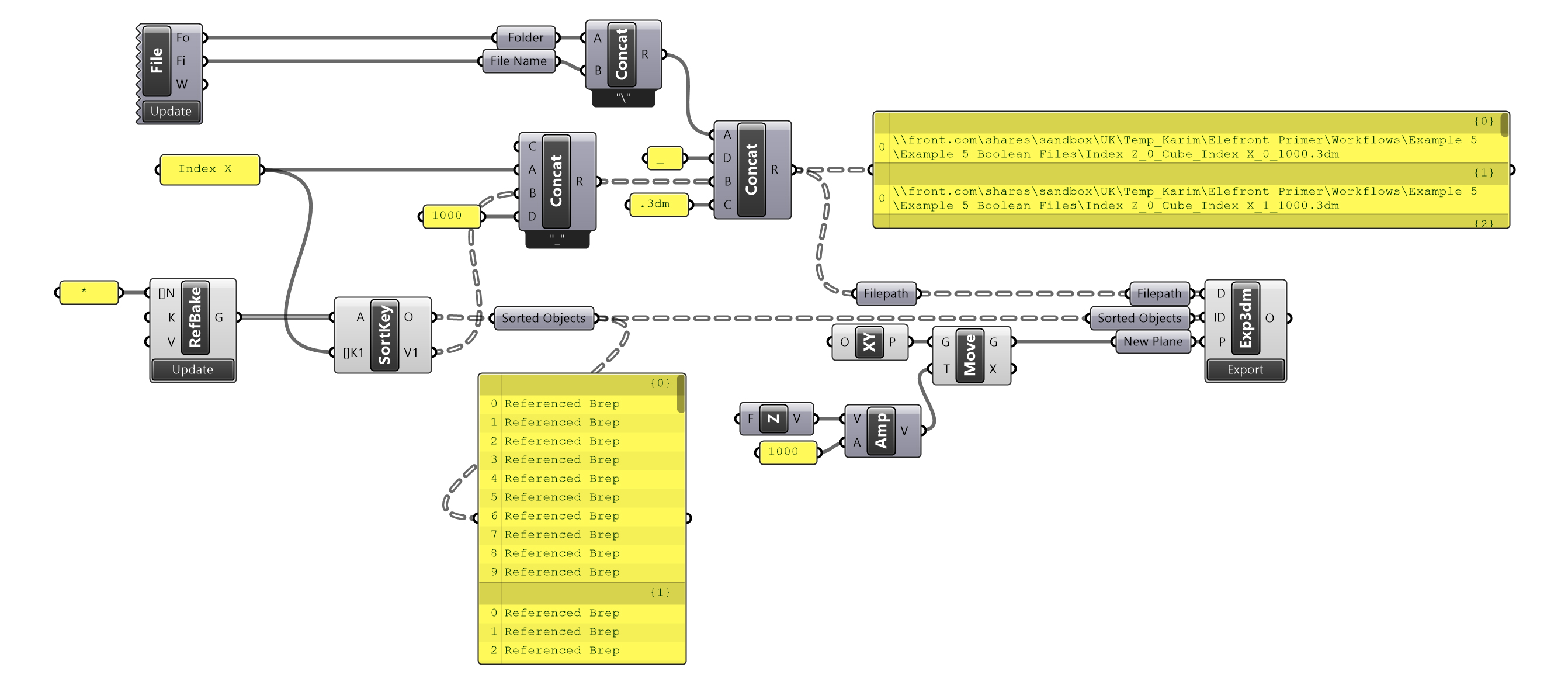 *
*Export 3dm with plane input
Querying file properties
We often need to use the file properties of the active rhino file in a script, for example for bakenames or export destinations. Manually typing these properties into panels carries the risk of typos, and panels will likely need to be manually updated if the script is run for different sets of data. eleFront offers components that return properties of active files, and allow users to search for and list all of the files in a directory.
Get Current File
Return the filename and directory of the current file.

Get Current File
List Files
List all files within a directory, matching a search mask.

List Files
Merge or Modify files
The ability to merge or modify Rhino files with these components is especially helpful in large models, allowing us to maintain complex output models without the need to bake everything every time an update is made. Not only does this save memory and run time, but allows for keeping parts of a model that were made using slightly different logic.
Merge Files
Merge Rhino files into a single file, with various settings. Check Workflows Example 2 to learn more.
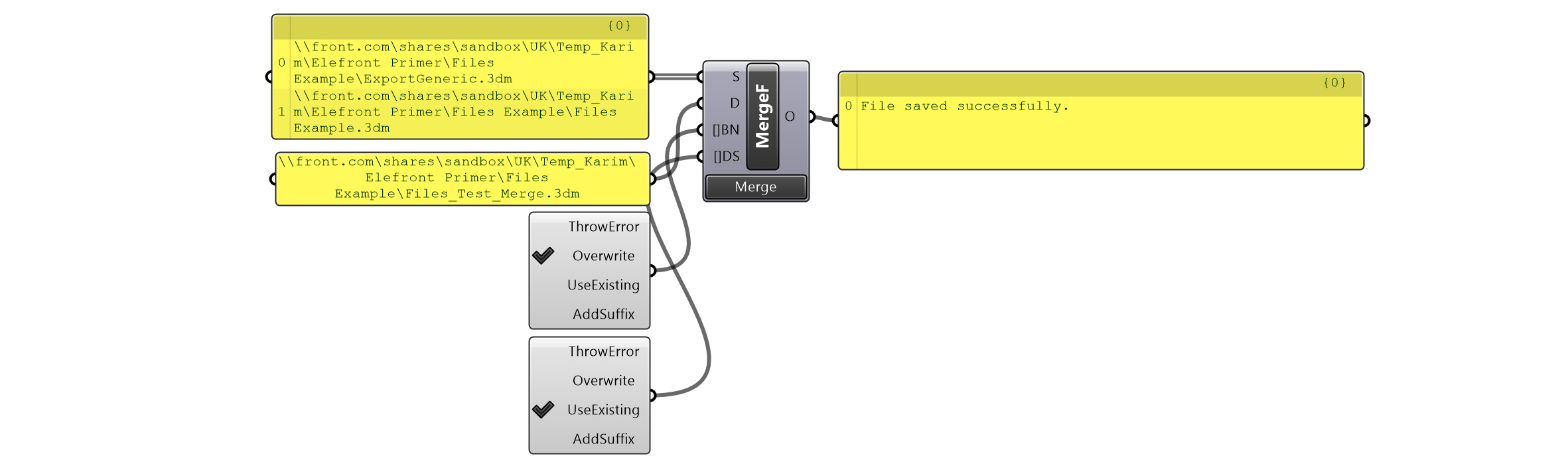
Merge Files
Modify Rhino File
Add or remove objects from an external Rhino file.

Modify Rhino File
Bake to External file
Though this component isn't part of the files Tab, Bake to File allows users to bake directly to an outside file.
-69a70deac1db02c1c8074f1373b4a77e.jpg) Bake to External File
Bake to External File
There are also some important options for handling this operation:
- Add To File - simply add geometry to the file, if it already exists.
- Overwrite File - completely save over the intended file
- Overwrite BakeName - treat the file in the traditional way, where items with the specified BakeName will be deleted, and replaced with the new geometry.
There are also options for Bake Setting presets. For more information, read about Bake Settings.
Lastly, there is an option called "Network Save". Read more below.
Network Save
When saving a Rhino model, objects are added incrementally into the file. If the file is being saved to a network location (i.e. a location that is not on the computer you are using, but rather a file server of some kind), this can be a very slow process. eleFront version 5 introduces components that allow the user to create, manage and manipulate external files from within Grasshopper. These components are:
Right click any of these components, and you'll notice they offer an option to "Network Save". When selected, the file will be saved to your local machine first, in a temporary location, and then when the file is complete, it will be moved to the final file path. This reduces the number of transactions across the network and is significantly faster for models with a large number of objects.