Export
%%intro paragraph%%
Export to Folder
The Bake component now returns eleFront Ghost objects that represent the objects that were baked. This way it is easy to process the objects after baking, for sorting or exporting. In this example, the Ghost Geometry is sorted by the attribute key “Row”, which in turn defines the filename for the destination file. This splits the baked geometry into 6 branches, with 6 different filenames, and exports the geometry respectively.
Exporting geometry to separate files has the benefit of organizing and batching models into manageable file sizes while ensuring that the file contains exactly the geometry intended.
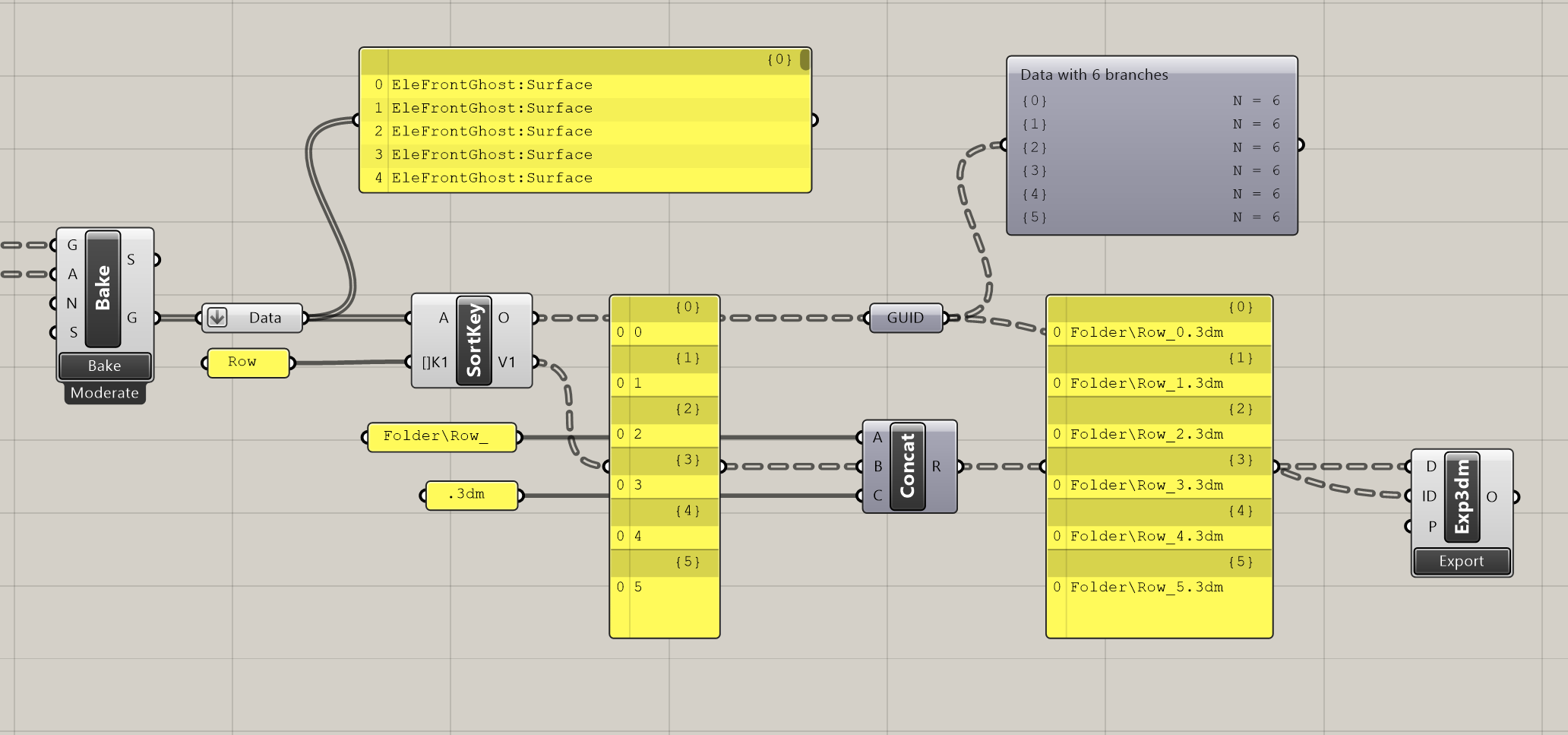 Export to folder
Bake to External file
Bake to File allows users to bake directly to an outside file.
-69a70deac1db02c1c8074f1373b4a77e.jpg) Bake to External File
Bake to External File
There are also some important options for handling this operation:
- Add To File - simply add geometry to the file, if it already exists.
- Overwrite File - completely save over the intended file
- Overwrite BakeName - treat the file in the traditional way, where items with the specified BakeName will be deleted, and replaced with the new geometry.
There are also options for Bake Setting presets. For more information, read about Bake Settings.
Lastly, there is an option called "Network Save". Read more here. %%add link%%
Modify Rhino File
The ability to modify Rhino files with this component is especially helpful in large models, allowing us to maintain complex output models without the need to bake everything every time an update is made. Not only does this save memory and run time, but allows for keeping parts of a model that were made using slightly different logic.
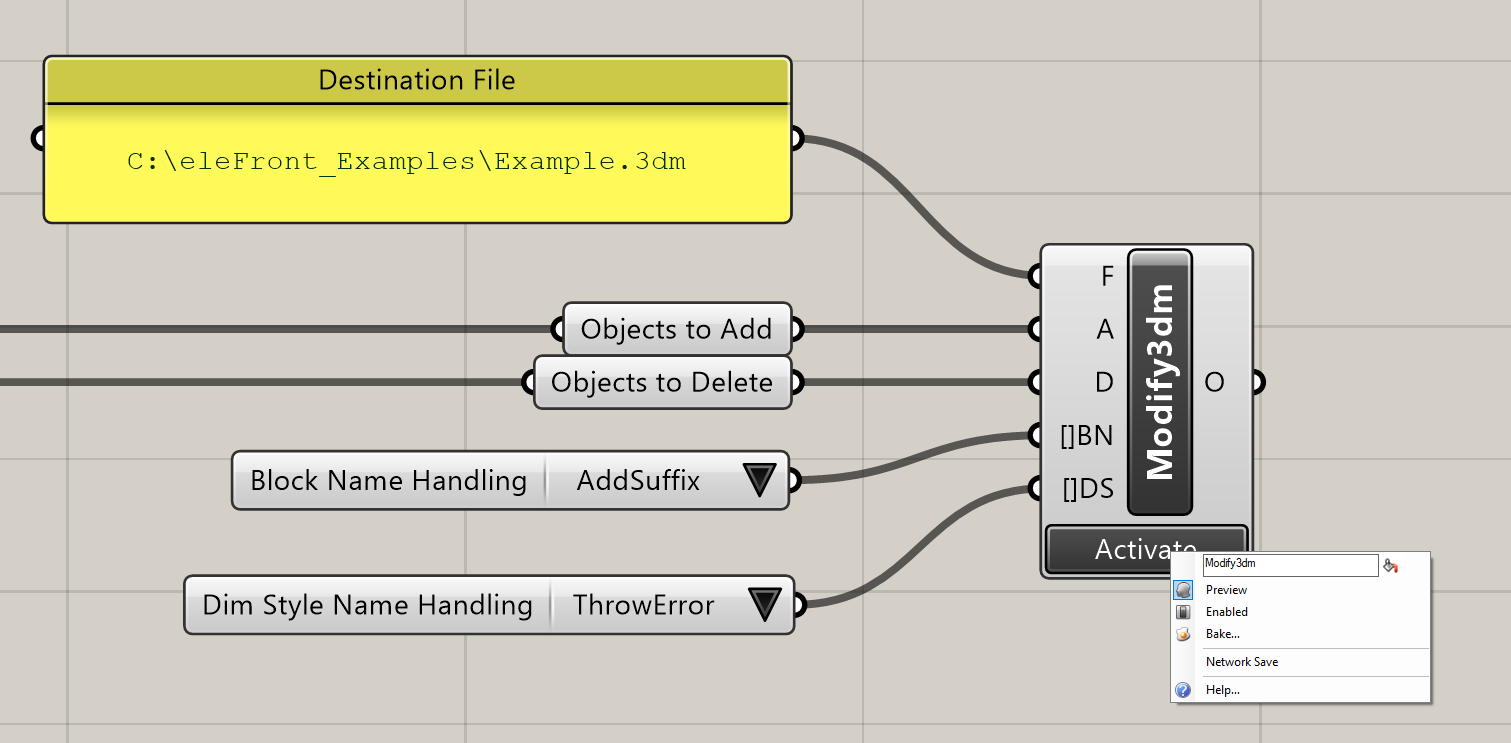 Modify Rhino File
Network Save
When saving a Rhino model, the objects are added incrementally into the file. If the file is being saved to a network location (i.e. a location that is not on the computer you are using, but rather a file server of some kind), this can be a very slow process. eleFront version 5 introduces components that allow the user to create, manage and manipulate external files from within Grasshopper. These components are:
Right click any of these components, and you'll notice they offer an option to "Network Save". When selected, the file will be saved to your local machine first, in a temporary location, and then when the file is complete, it will be moved to the final file path. This reduces the number of transactions across the network and is significantly faster for models with a large number of objects.