Blocks
Introduction
Blocks can play a crucial role in your modelling process. Blocks are Rhino models that can be placed inside other Rhino models. Find a more detailed explanation on the McNeel Wiki page about blocks.
Definitions vs. Instances
There are some crucial concepts to understand in order to work with blocks effectively:
- A Block Definition is formed by all objects that are within the block, together with the name of the block and its Origin plane.
- Block Definitions are saved as part of a Rhino model.
- A Block Instance is a Block Definition placed as an object inside a Rhino model.
- A Block Definition can exist in a Rhino file, even if no instances of the block have been placed in the model.
- Block Instances can be created directly in a Rhino model (local block), or they can be created from an external Rhino file (linked block).
- Either type of definition is saved inside the Rhino file, regardless of whether any block instances exist in that file. (See Figure 31)
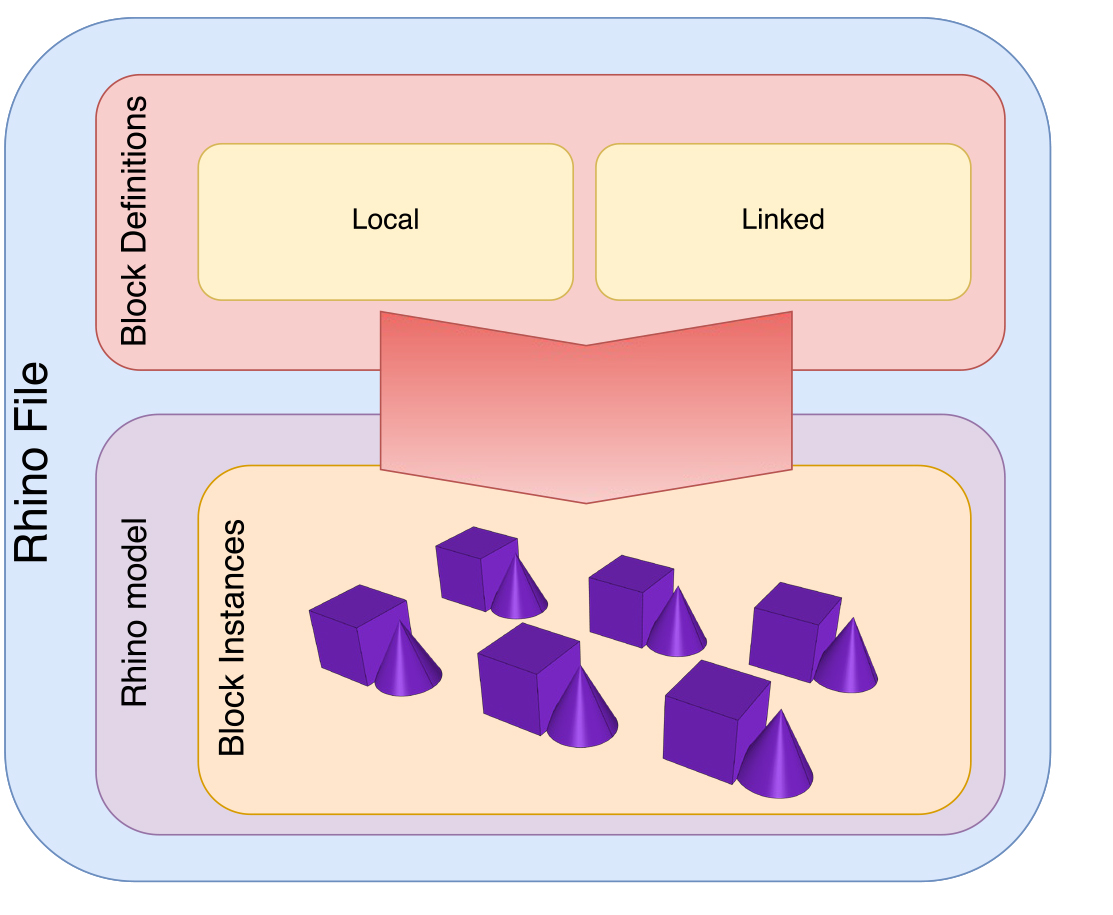 Block definitions vs block instances
Where are Blocks Defined?
Blocks can come from any of four sources:
- The Active Document
- Defined in your Grasshopper Script, with eleFront
- In a Reference file, from the Worksession
- Referenced from an External File
[!WARNING] Grasshopper-Native Rhino Blocks As of right now, eleFront is not completely cross-compatible with the native workflows on the
Rhinotab in Grasshopper. We are working to make this more seamless in future releases.
Block Types
Document
The most basic type of block is the one that only exists inside a Rhino file. It is referred to by block name and can be created either manually in Rhino, or by using eleFront in Grasshopper.
Linked
The other type of block is a Rhino file that is inserted into another Rhino file. A detailed explanation can be found on this website, but the principle is explained here. When inserting an external file, the user can choose between 3 block definition types. (Figure 32).
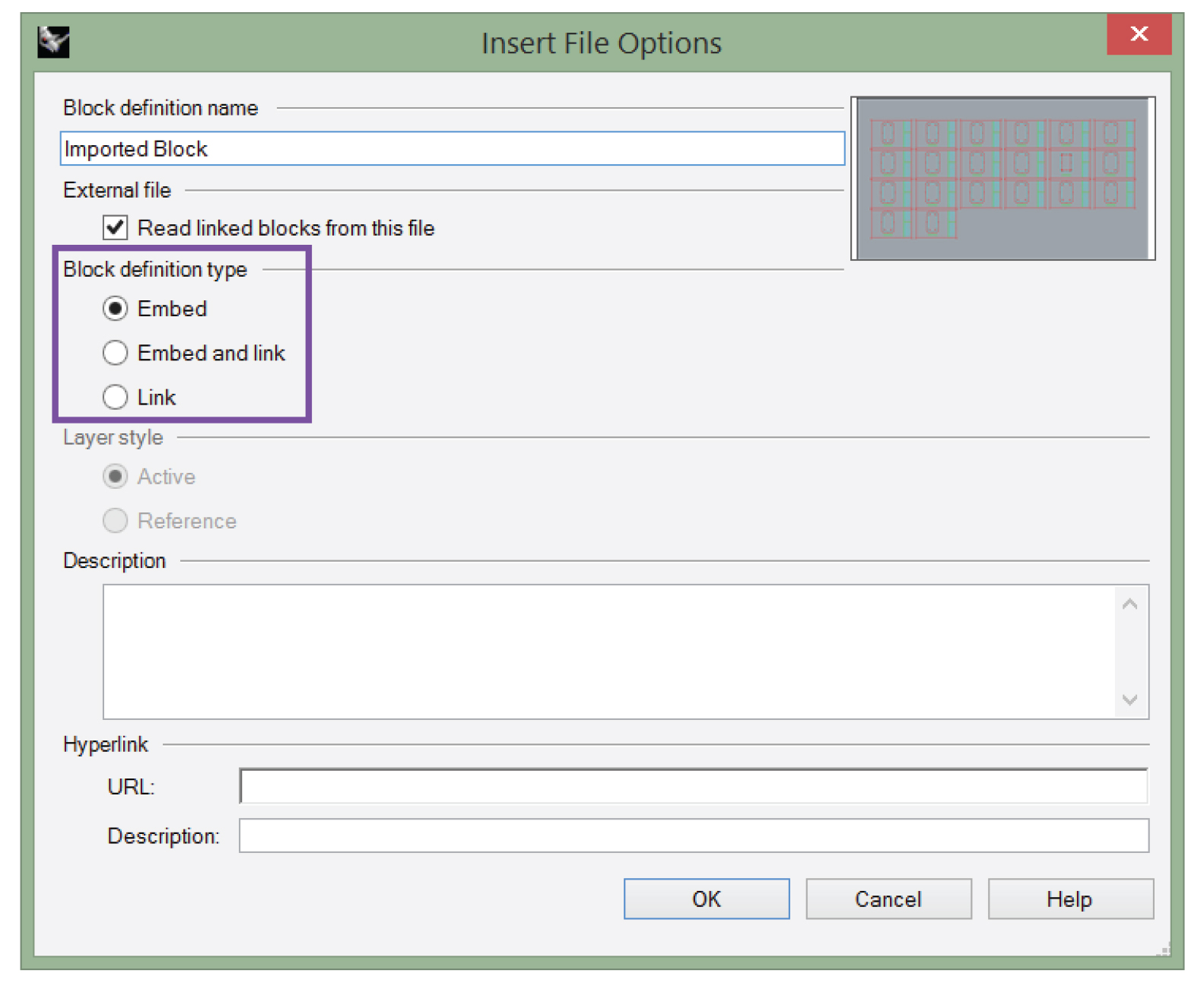 Rhino block definition types
- Embed creates a block definition that only exists in the current document and has no relationship with the original file.
- Link will maintain a link with the original file. Whenever the original file is modified outside of the current document, the block definition can be updated to reflect the latest changes. When a user does not have access to the original file when opening a Rhino model, the block will be replaced by a warning dot.
- Embed and link will maintain a link to the original file, while also saving a copy in the current Rhino file. The block will only be updated when the user explicitly initiates this.
eleFront provides functionality to create both local block definitions and linked block definitions. We can dynamically define block definitions in Grasshopper. One option is to use the eleFront Bake component to create an instance of the definition. In other words, the Bake component will place a block in the Rhino model. When a block instance is “baked” into the model, the block definition is also added/updated to the Rhino file.
Definitions
When you define a block, the component now returns a representation of the Block Definition.
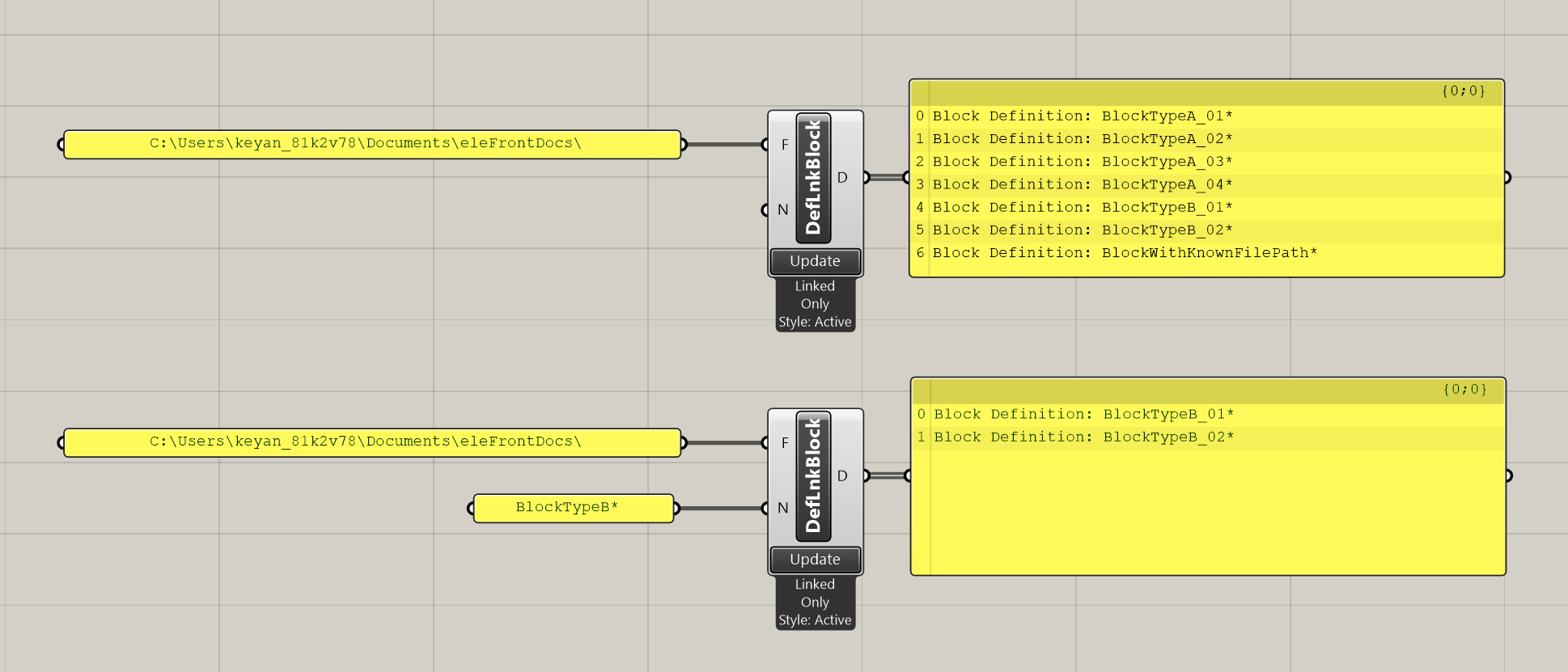
Define linked block component
The Define Linked Block component now also includes an option for Embedded and Linked.
You can simply provide a directory, or you can search for blocks that follow a pattern.
[!NOTE] What used to be called "Import Linked Block" is now called "Define Linked Block". The old version of the component called "Define Linked Block" has been deprecated. To define a block with geometry to an external file, simply use Bake To File, and then create the Linked Block definition with Define Linked Block using the filepath of the exported model.
This will allow you to update external block definitions without having to bake to your active document.
[!TIP] Sometimes you know the exact filepath of a block, and breaking up the file name is tedious. For convenience you can use the
Deconstruct FilePathcomponent.
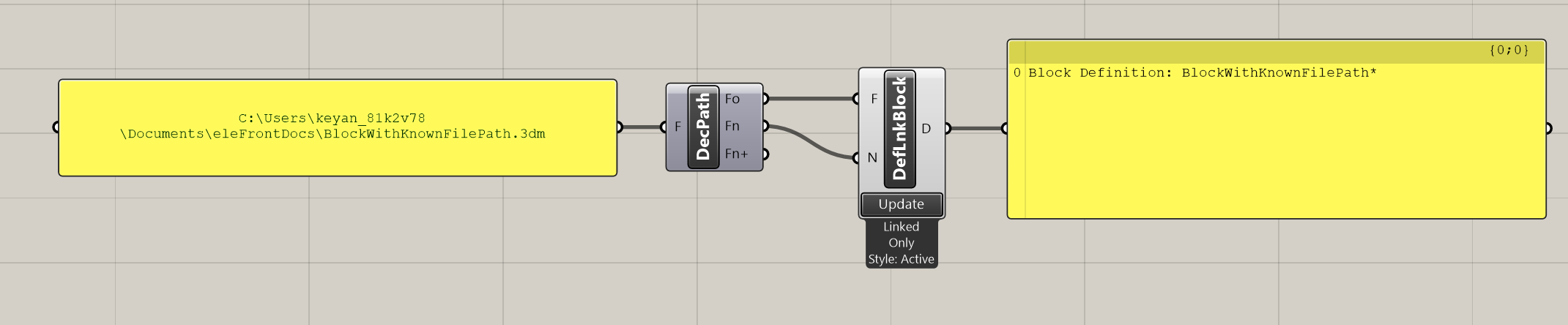
The resulting definition is easily convertible into a block, either by transforming it, or passing it into a Block parameter:
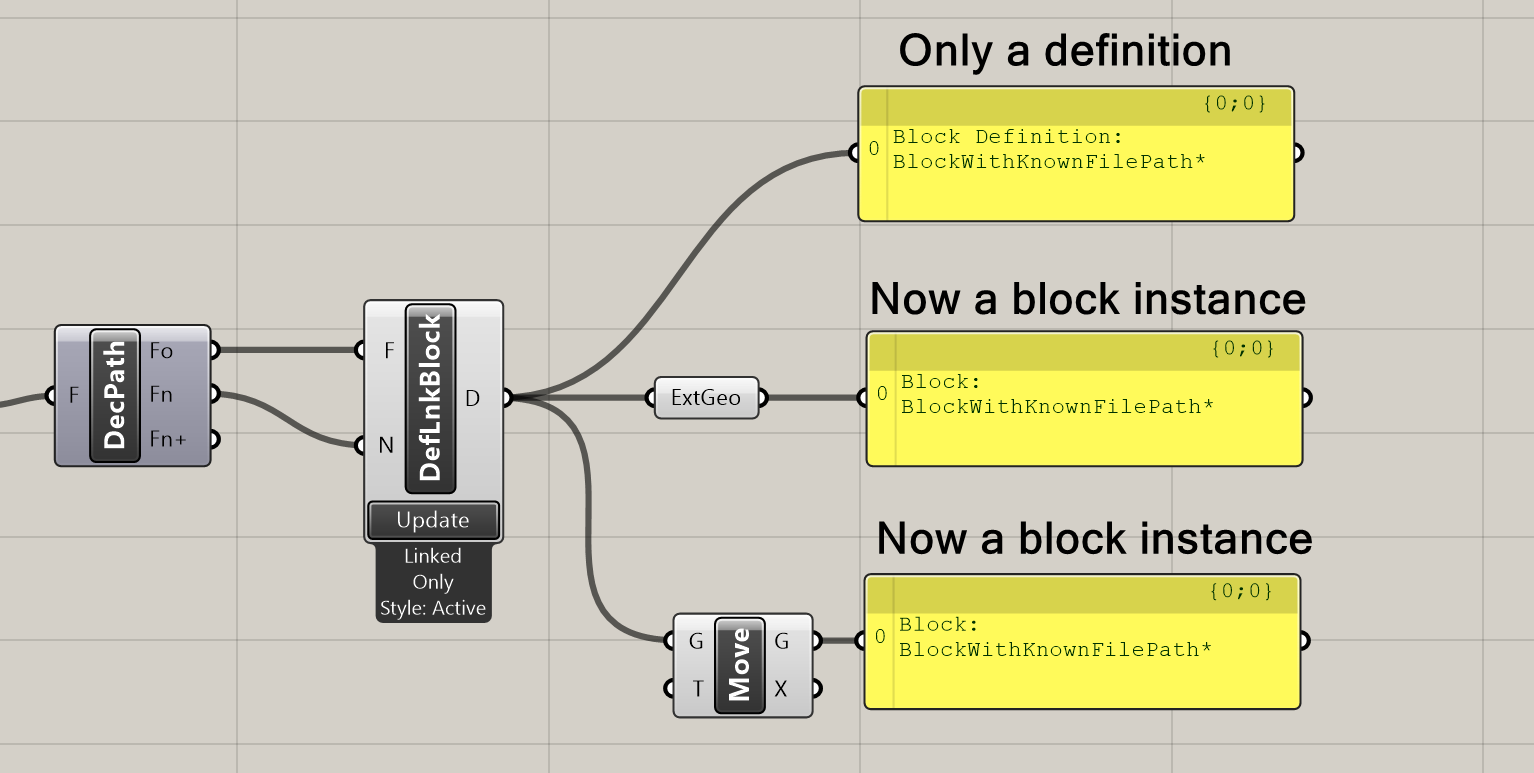 Asterisks indicate the block only exists in Grasshopper
You may notice the asterisk after the name of the block. This is to indicate that the block definition only exists in Grasshopper - there is either no definition in the Rhino document, or the version in Grasshopper is newer than the version in Rhino. To resolve this, you need to "Push" the definition to the document.
Pushing Definitions
To update the Block definition in the Rhino session, you need to "push" the definition from Grasshopper to Rhino. You can do this from the Push Definitions component. This will work on both Block Definitions and Block Instances. This means you can update Block definitions without baking an instance to the document.
After pushing, the asterisk has been removed. If you were to reload the upper panel, it would also remove the asterisk, since the block will know that its definition has been pushed.
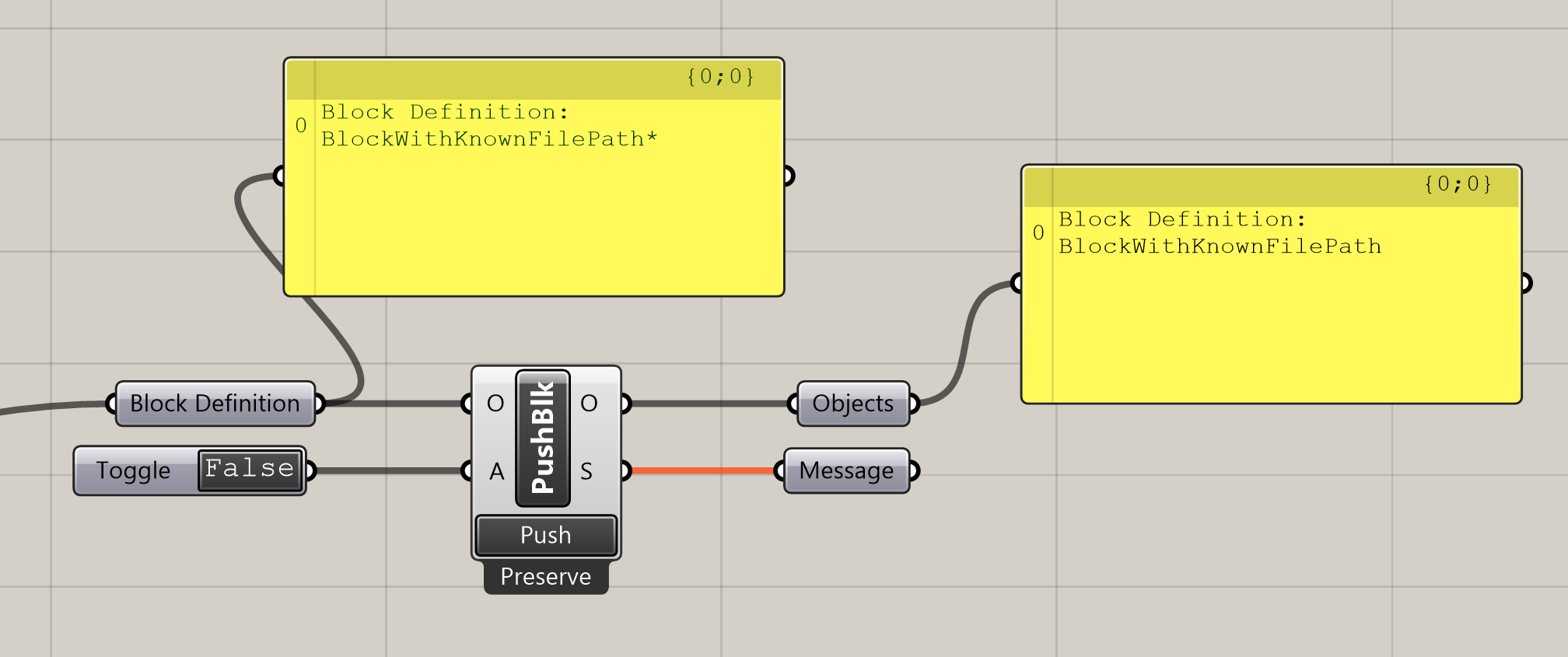 Push Block component
If a definition with the same name already exists, it will throw an error. There is an option to Overwrite the existing definition, which is available from the context menu. Not only can you change the definition, but this means you can also easily change a Linked Block to an embedded one, and vice versa.
The bake components will expect you to push all definitions before baking so that you can resolve conflicts at that stage. You can override this behavior using Bake > Bake Settings.
Using Blocks in Grasshopper
Get Block Info
You can now access lots of information about a block, without having to fully deconstruct it. In the old version of eleFront, it could be very computationally demanding to compute the geometry of a block, if all you wanted was its plane or name. Therefore, we've added the Get Block Info component.
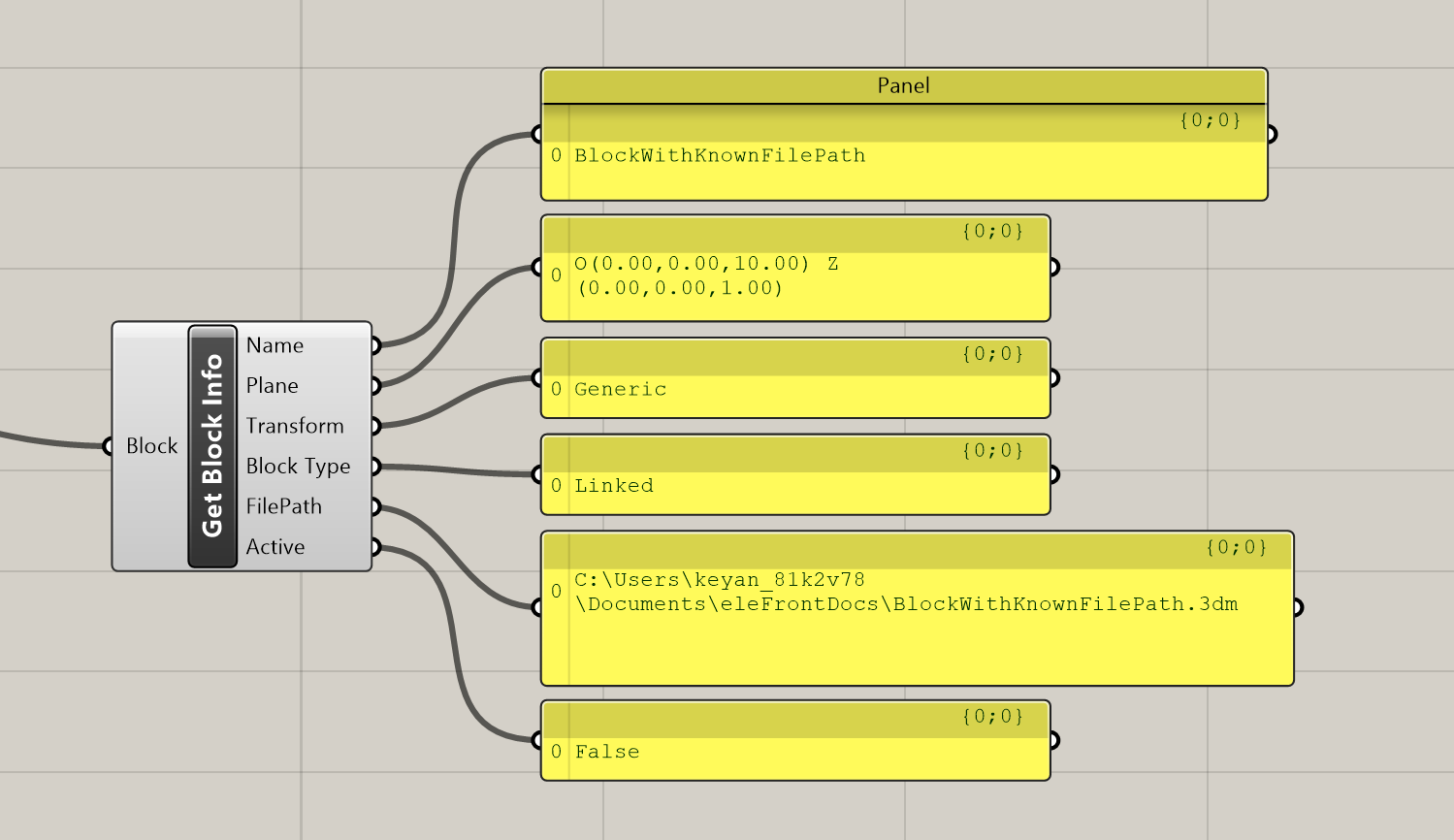 Block Info component
This features lots of useful information about a block:
- Block Name
- Transformed Plane
- Block Transformation
- Block Type
- Source File (if Linked or Embedded and Linked)
- Whether it has been pushed to the active document
Explode Block
The old component Deconstruct Block has been replaced with Explode Block, to draw a clearer distinction from the Get Block Info component.
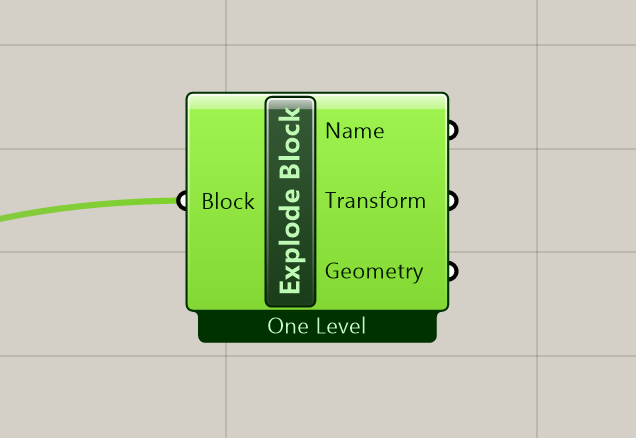 Explode Block component
Note the One Level setting. If you have blocks nested inside other blocks, the One Level setting will return the nested block instances directly (alongside any other geometry in the top-level block definition). If you would like to explode the nested blocks, and any blocks nested within them, all the way down, then choose the Recursive setting.
Troubleshooting Blocks
Common issues