Bake
Introduction to Baking with eleFront
The traditional, native method of sending resulting objects from a Grasshopper definition to Rhino is to right-click a component containing the objects and select Bake...
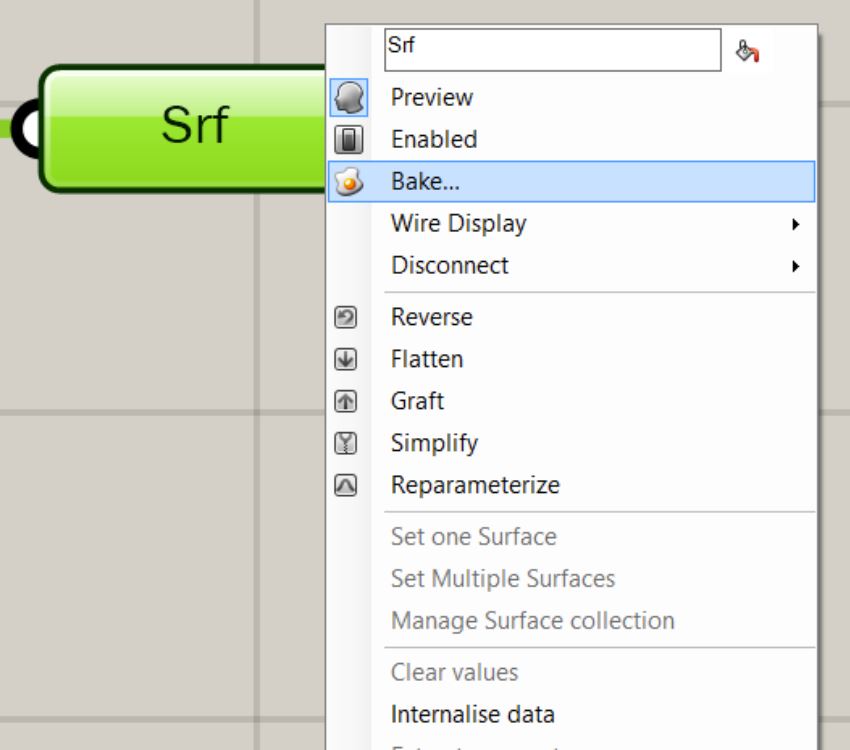 The native method of sending Grasshopper objects to Rhino
The user is then able to specify a set of attributes. (Figure 10B). All objects present in the data tree will be manifested in Rhino based on this single set of attributes. It is not possible to specify different attributes for different objects in the data tree. Each time you bake objects to Rhino, you have to specify the attributes again. Previously baked objects will remain in Rhino.
Perhaps the most obvious and most used component in the eleFront suite is the Bake component.
It allows the user to specify Attributes for every object in the data tree. Objects can then be baked to Rhino with a single button click. It is possible to specify a name for the component (Bake Name). When you do this, every time you activate the bake component, all objects that were previously created by it, will be removed from the document, before the new objects are created. This way you can make changes to your definition and re-bake the results, without risking duplicate objects, or duplicate results of the same process in the Rhino model.
Bake with BakeName
The core of all eleFront operations is the “Bake” operation. Baking is the process of sending the objects you have created in Grasshopper to the Rhino model. eleFront allows the user to bake objects in Rhino while adding a label to these objects. This label is referred to as “BakeName”. When objects are baked using the eleFront bake component, all objects that were baked previously using this component will be removed from the Rhino model.
Bake with Attributes
As mentioned in Object Types, Attributes are a key aspect of the eleFront workflow and a bake operation is typically combined with attributes. Attaching User Attributes to geometry in Rhino via baking is the key way in which metadata is passed between files. The Attributes are constructed and simply plugged into the Attribute input of the Bake component, be sure to match the two streams going into the Bake component item-for-item.
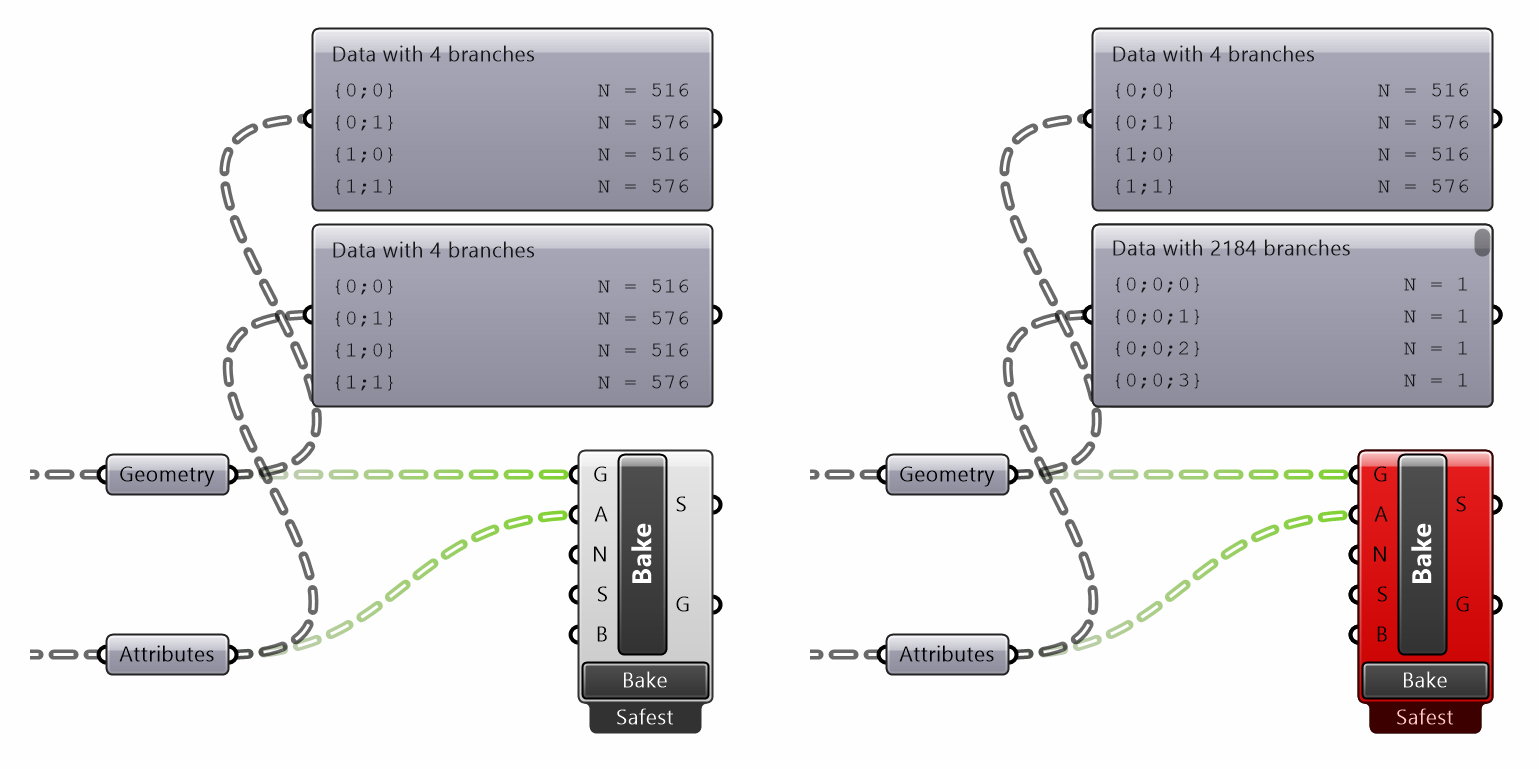 Baking with attributes, trees aligned (left) and trees misaligned (right)
Bake to File
As well as baking to the active Rhino document, you may wish to bake directly to an external file using the Bake to File component, this is covered in more detail in the Export section.
Bake Settings
You now have many more options when it comes to baking behavior.
There are 3 presets, which are described below. These can be selected directly on the Bake components, or you can use the Bake Settings component to start with a preset and modify it as you see fit.
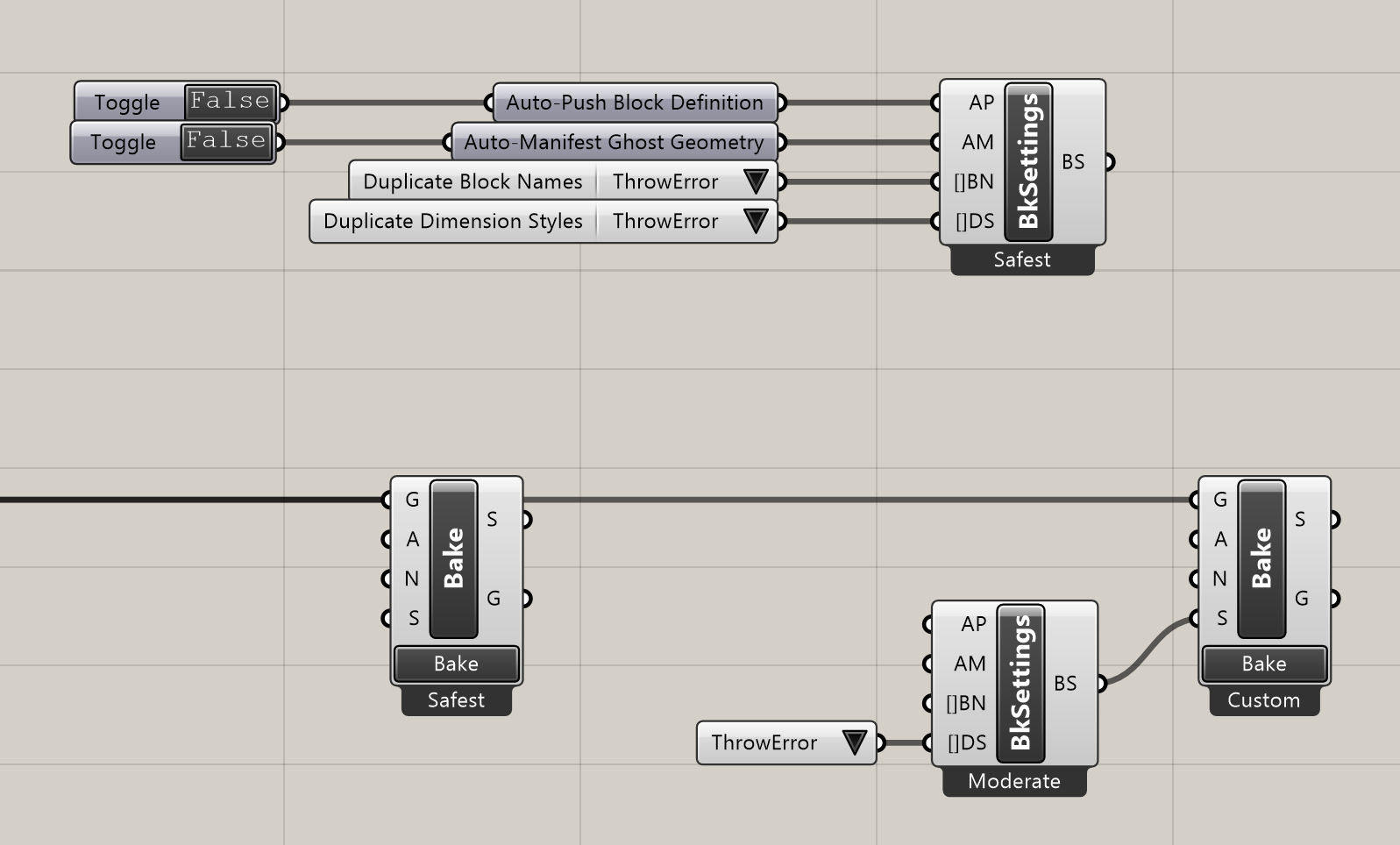 Two methods for Bake Settings
Parameters
There are currently 4 parameters for your Bake Settings.
- Auto-Push Block Definitions
By default, Bake will throw an error if you try to bake a block whose definition has not been pushed to the document. You can override this behaviour. - Auto-Manifest Ghost Geometry
By default, Bake will throw an error if you try to bake a Ghost object, without having first manifested its geometry. You can override this behavior. Note: This can be slow because it will have to open the original file (in the background) to get that geometry. - Duplicate Block Names
If Auto-Push is enabled, then you will need to decide how to handle scenarios where you are pushing definitions that already exist. There are four options (see below). - Duplicate Dimension Styles.
If you are baking objects that have new Dimension Styles (for example, a Linked Block with annotations in it), you need to decide how to handle any styles with the same name.
Duplicate Handling
There are four settings for handling duplicated names, either in Blocks Definitions or Dimension Styles:
- Throw an Error
- Use Existing (i.e., the definition or DimStyle already in the document)
- Overwrite (updated the document version to the one being baked)
- Add Suffix
Settings Presets
There are 3 presets for Bake Settings:
- Safest Throws errors for all duplicates, and does not Auto-Push or Auto-Manifest.
- Moderate Will Auto-Push and Auto-Manifest, but will throw errors for any duplicates.
- Bulldoze Auto-Push, Auto-Manifest, and overwrite any duplicates.
Bake Group
In addition to the Bake All button, you can now activate Bake components that share a group with the button, making it easier to bake specific, relevant parts of a script.
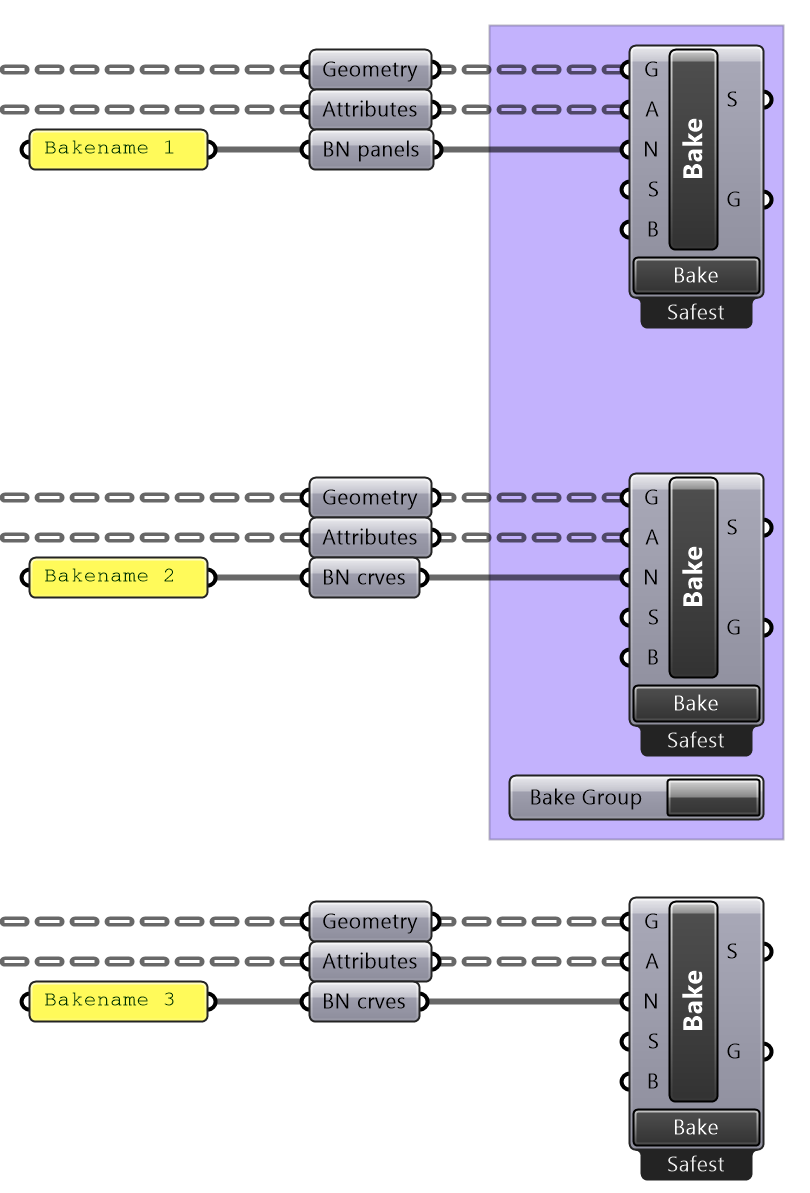
Bake Group component will bake objects in Bakename 1 and 2
GUID Output
Bake components now return EleFront Ghost objects that represent the objects that were baked. This way it is easy to process the objects after baking, for sorting or exporting.
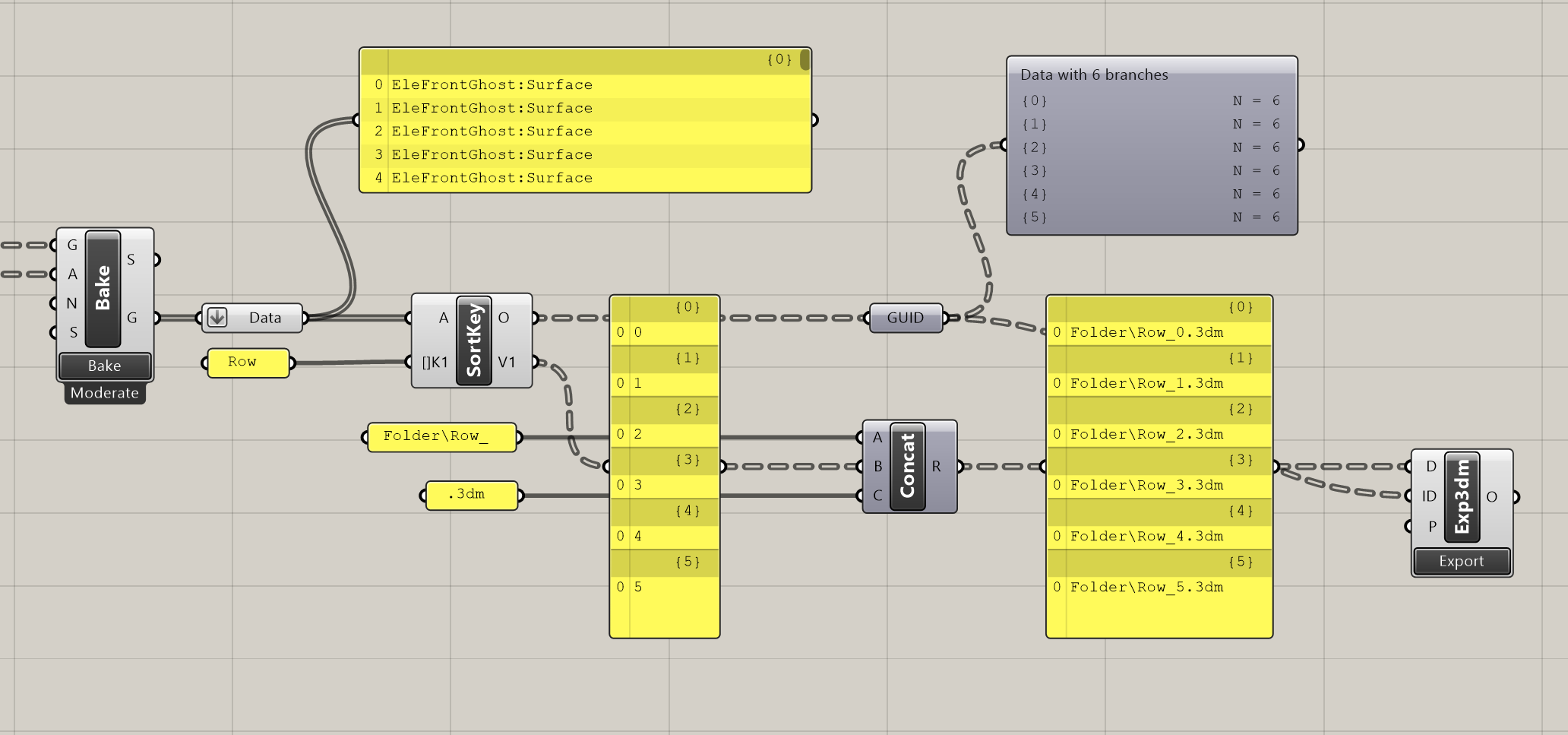 Ghost Objects returned by Bake components
Bake Troubleshooting
%%issues tht you might find %%