Attributes
What is an Attribute
Attributes are essentially metadata that can be attached to geometry and used for sorting, filtering and extracting a wide range of information. As mentioned in Object Types, Attributes are a key aspect of the eleFront workflow and the ability to define, manipulate and extract Attributes is perhaps the most valuable ability afforded by eleFront.
Attributes fall roughly into two categories, Rhino Attributes and User Attributes. Rhino attributes are attributes that we see in the Rhino document, this may be information pertaining to Name, Layer, Colour, Material, and Source File. The second, more powerful category, is its ability to assign User Defined Attributes (UAs). UAs are text-based pairs of keys and their respective values, the user is free to define these as they wish.
The key is the name of the attribute, and the value is the actual value. One way of thinking about it is as a series of categories, if you have a database of cars, some keys might be "Colour", or "Number of Doors" and the corresponding values could be "Red", or "4". Each eleFront Attribute can be assigned any number of UA, in addition to the Rhino Attributes.
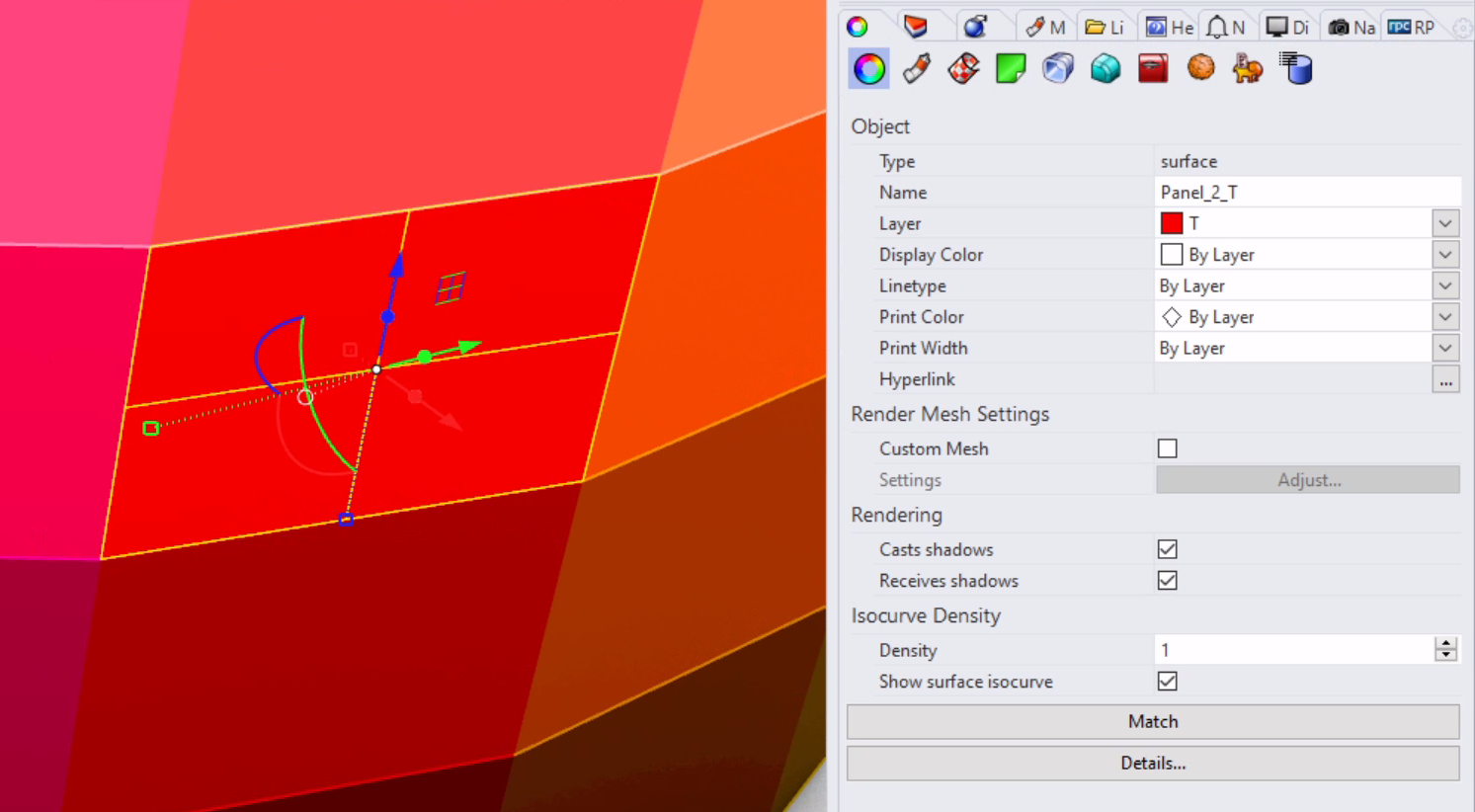 An example of Rhino Attributes - Name, Layer, Colour
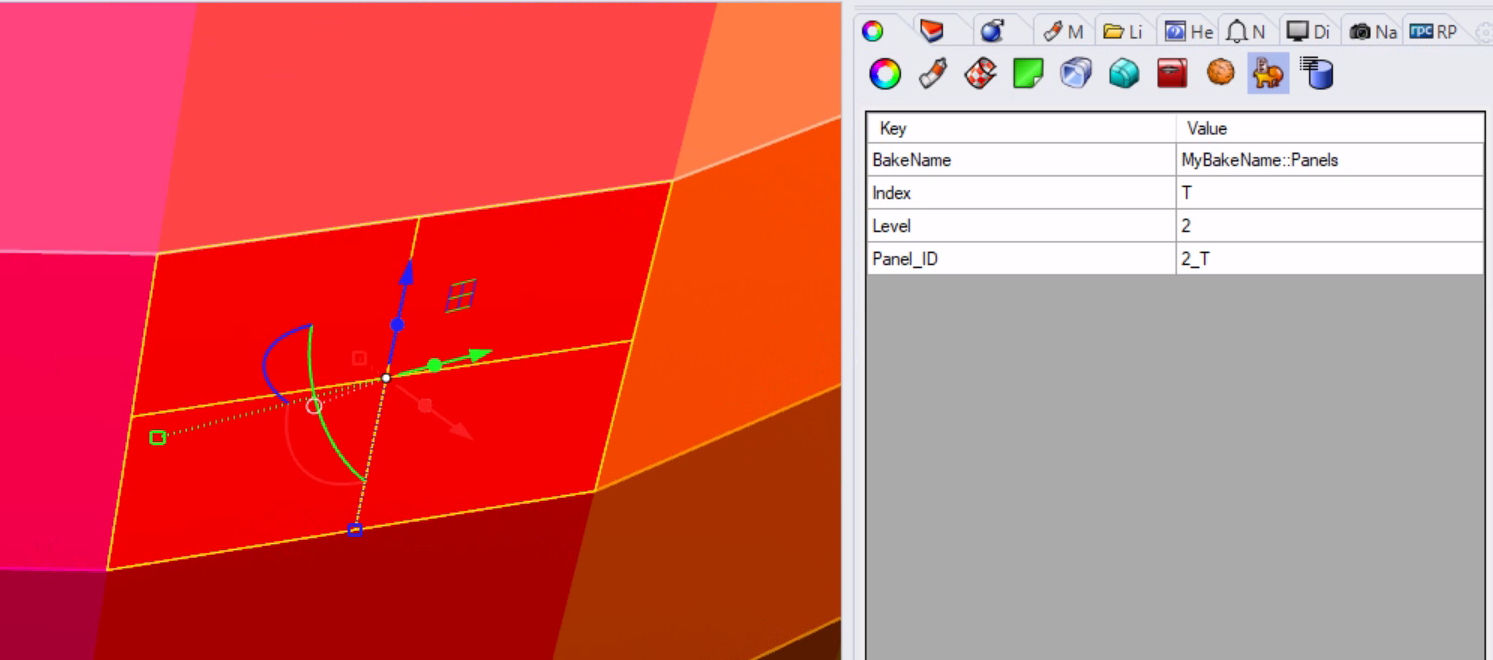 The eleFront User Attributes of the same panel
Extract Attributes
Attributes can be read from objects in a couple of different ways, be sure to become familiar with the appropriate tools to efficiently return the type of information required.
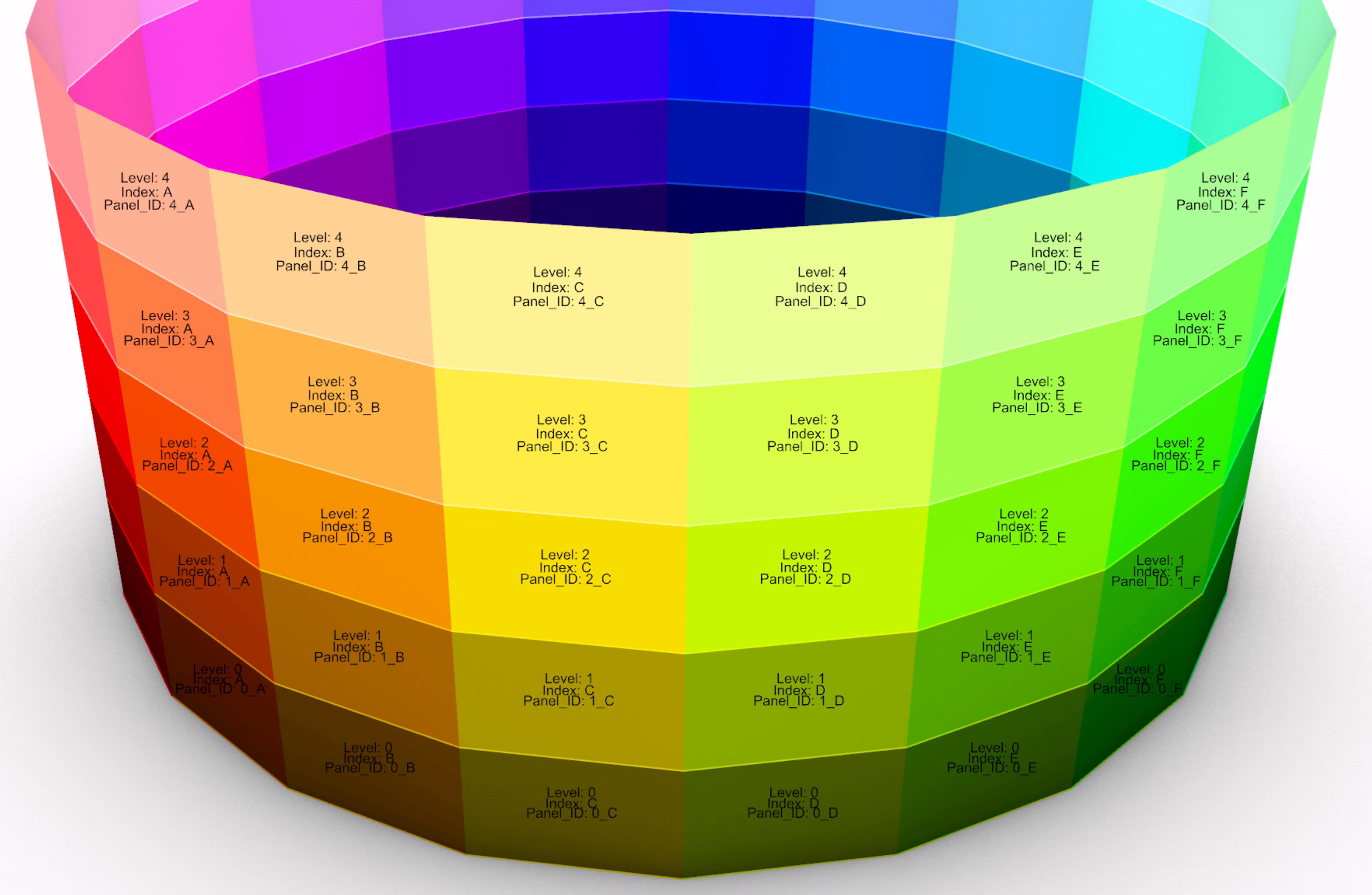 eleFront attributes displayed in Rhino for a series of panel surfaces
If only the Rhino Attributes are required, Get Rhino Attributes will return the attributes related to the Rhino Document - Name, Layer, Colour and Source File, to view User Attributes, there are several methods available.
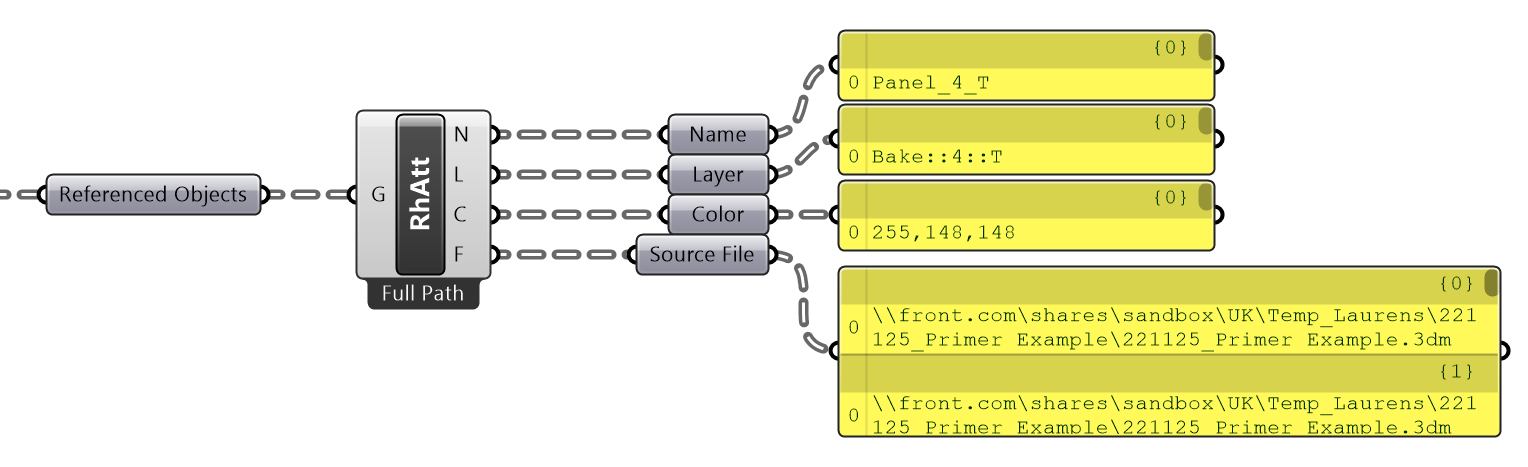 Rhino Attributes of a referenced object
To simply find the corresponding value for a key, the most common method is to use the Get User Value component.
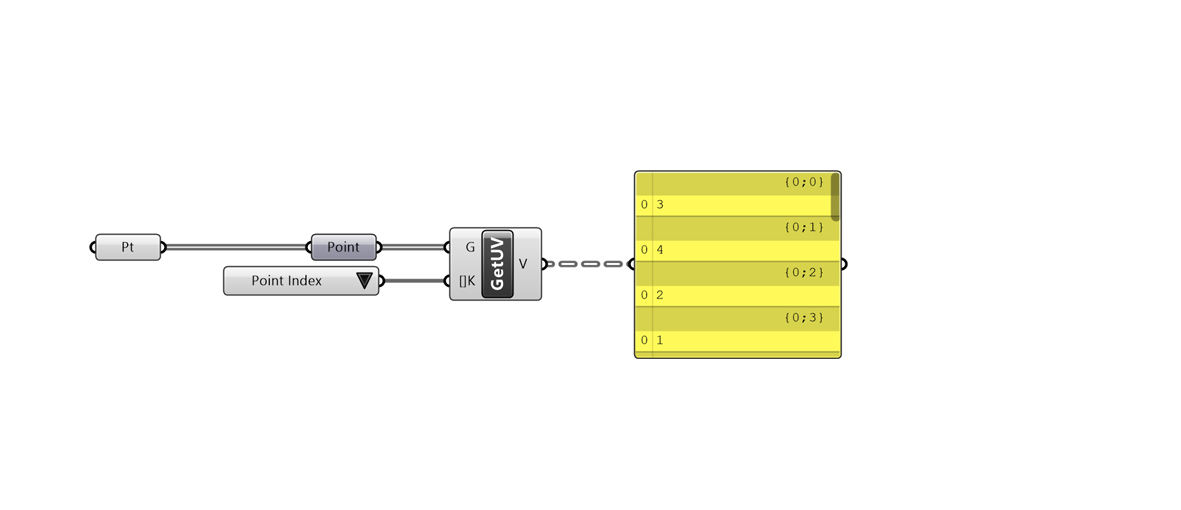
Accessing properties of Object Attributes using the Get User Values component
Further to that, some components will just output all attributes for all objects. Get User Attributes will return Keys, Values and Bake Name.
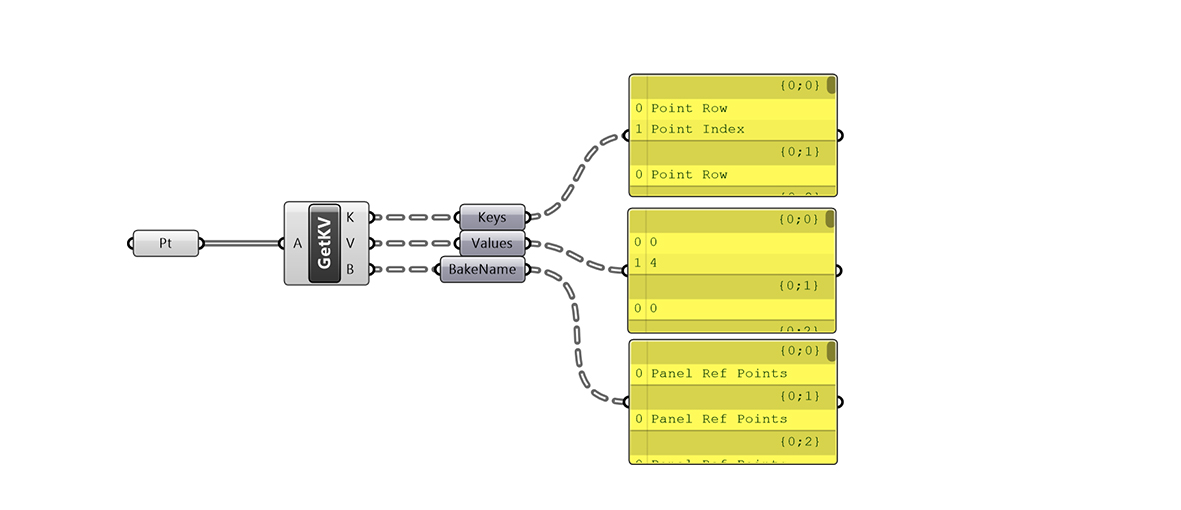
*Get all user attributes for all objects
%%Add attributes to data in the stream%%
eleFront Attributes
While there are several methods and components for reading attributes, only one is needed to create, modify and deconstruct them - the eleFront Attributes Component. eleFront Attributes works much in the same way as pass-through components introduced with Rhino 8. Depending on the inputs and outputs that a user connects to the component, it will either construct, modify or deconstruct data in the same component, which you can read more about here. Below is the eleFront Attributes component with all the available inputs shown, there are some which will be used more than others, but it is important to at least become familiar with all the potential options.
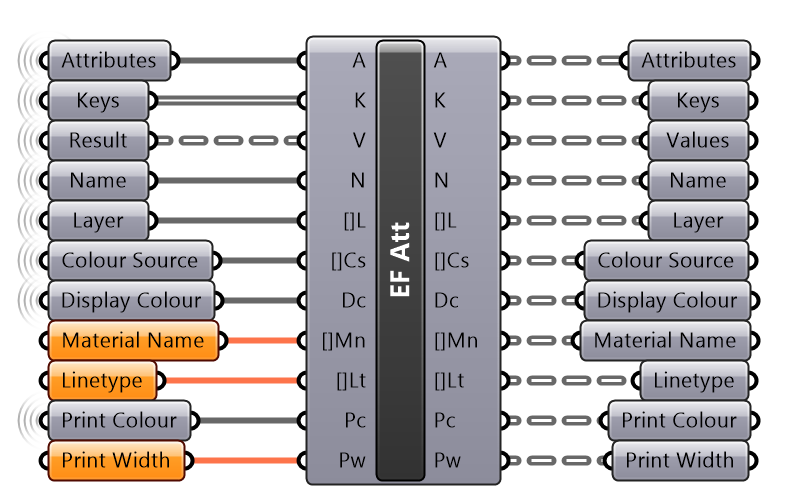 eleFront Attributes component
Creating, Modifying and Deconstructing Attributes
The images below describe how the eleFront Attributes component can be used when creating, modifying and deconstructing the User Attributes of a single Attribute Object.
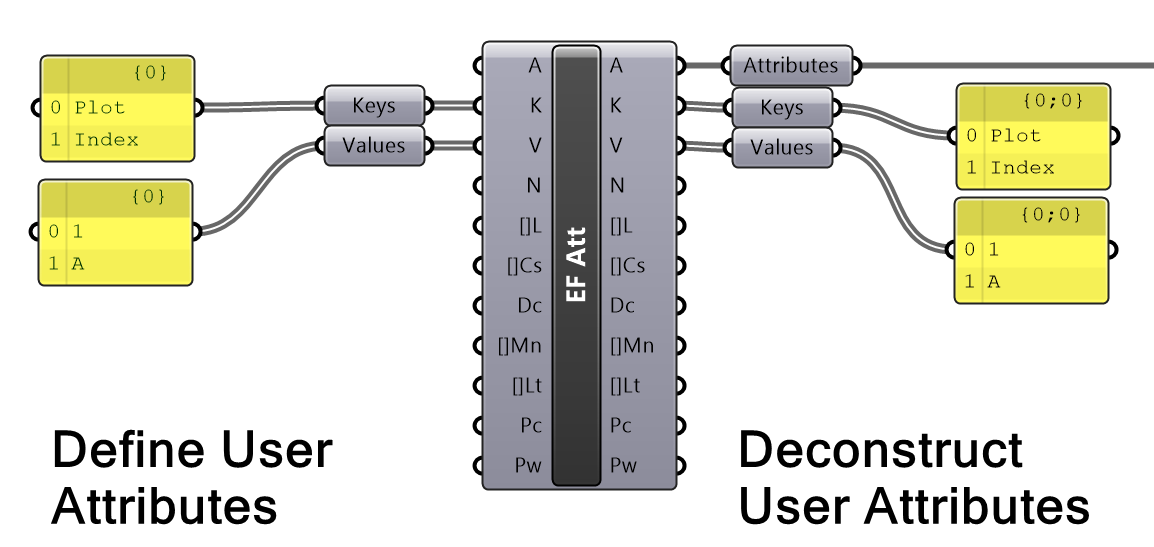
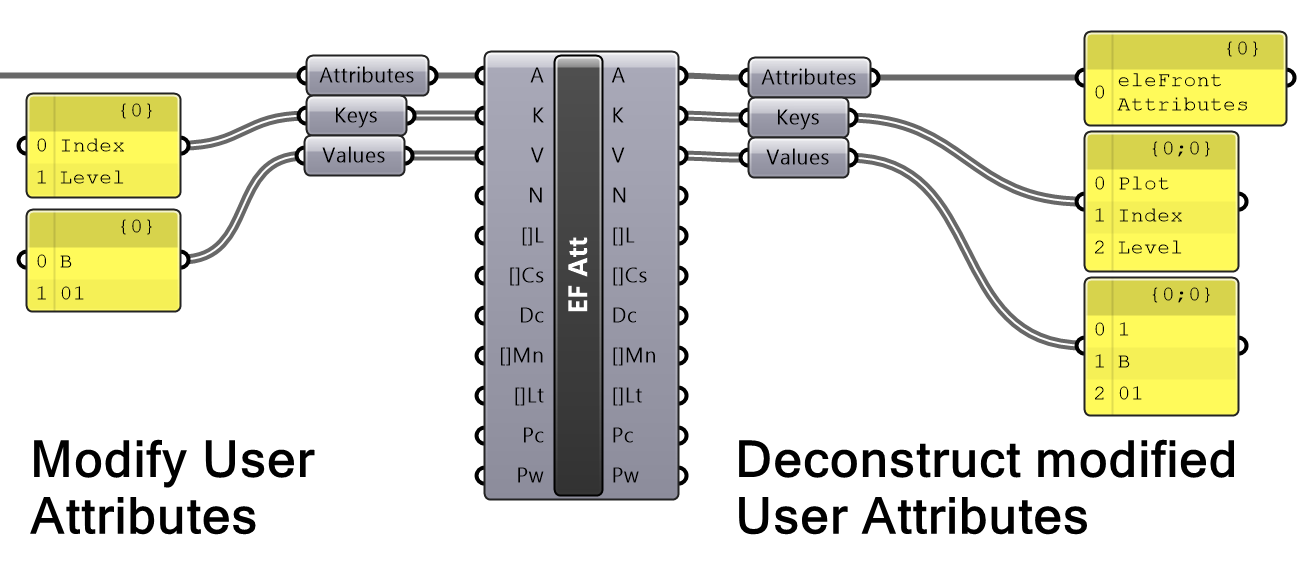 Using the eleFront Attributes component to create, modify and deconstruct User Attributes
Attributes and Data Trees
When creating or modifying Attributes it is important to note that an Attribute Object can store multiple Keys and Values, but cannot for example store multiple Layers, since an object in Rhino can only be on one layer at a time. Therefore it is important to have a good understanding of data trees when using this component. In the example below, note how there is one item per branch in “Existing Attributes” and “Layer”, but each Attribute Object will receive 6 Keys and 6 Values each.
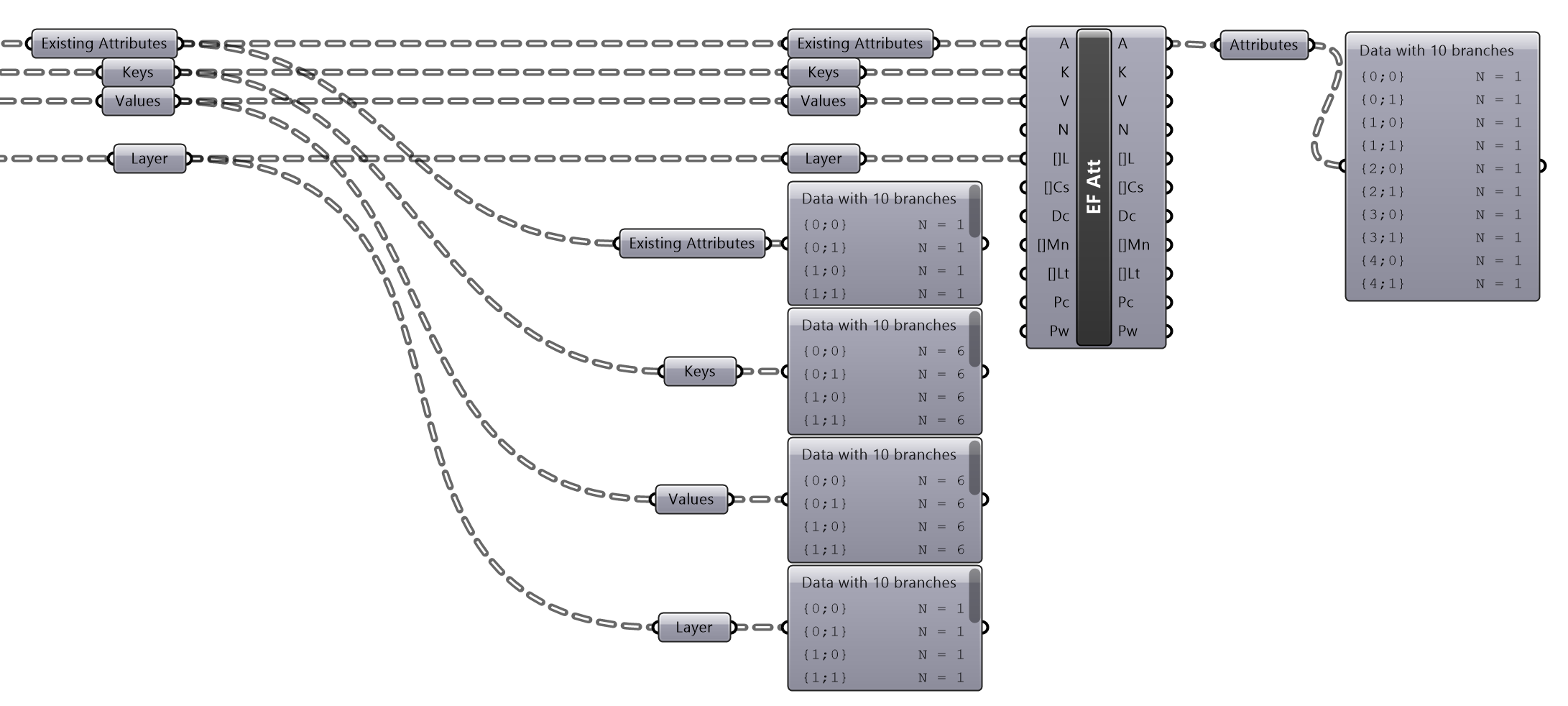 A typical tree structure for the eleFront Attributes component
Housekeeping
For visual simplicity, as well as communicate how the eleFront Attributes component is being used in each instance, a user might want to collapse the component into its simplest form. To do this, right-click and select “Hide All Unconnected Parameters”. These parameters can be shown again by right-clicking and selecting “Show all Unconnected Parameters”, they can also be incrementally shown or hidden by zooming in and clicking the plus or minus sign. If the component does not receive any Existing Attributes, it will create attributes from scratch; if there are Existing Attributes and other inputs, it will modify attributes; and if there are only Existing Attributes plugged in, the component is deconstructing them.
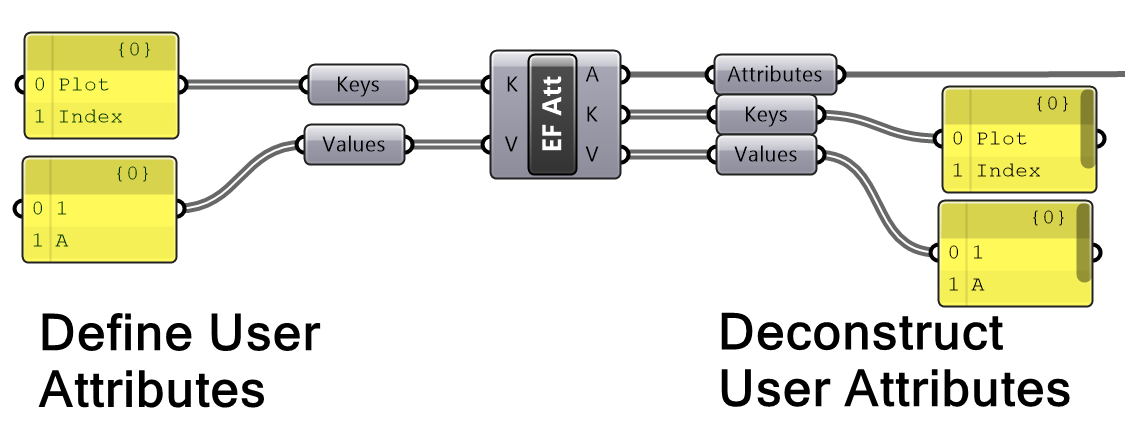 eleFront Attributes component with unconnected parameters hidden
Detaching and Attaching Attributes
Since the eleFront Attributes component always outputs attributes, in previous versions of eleFront, they could only be assigned to geometry upon baking. As a result, there was the need for multiple streams since any Keys, Values or User Attributes made upstream had to be tracked along and combined at the end just before the Bake Objects component.
The resulting difficulty of the required tree manipulation and the potential for errors in merging many streams caused quite a lot of overhead in both time and complexity. Sometimes a user may wish to filter or sort using these newly created keys and values but has to do all manner of parallel filtering in order to achieve this since they are not connected to the geometry that they refer to.
Fortunately, eleFront v5.0.0 and above now includes the Detach Attributes and Attach Attributes components. Using these components, the user is able to separate the attributes and the geometry, modify those attributes (or create from scratch if not already present) and reattach those modified or newly created attributes. The advantage is that the user is then able to treat this attributed geometry in the same way as any other referenced geometry, while consolidating streams of data as they progress through the script.
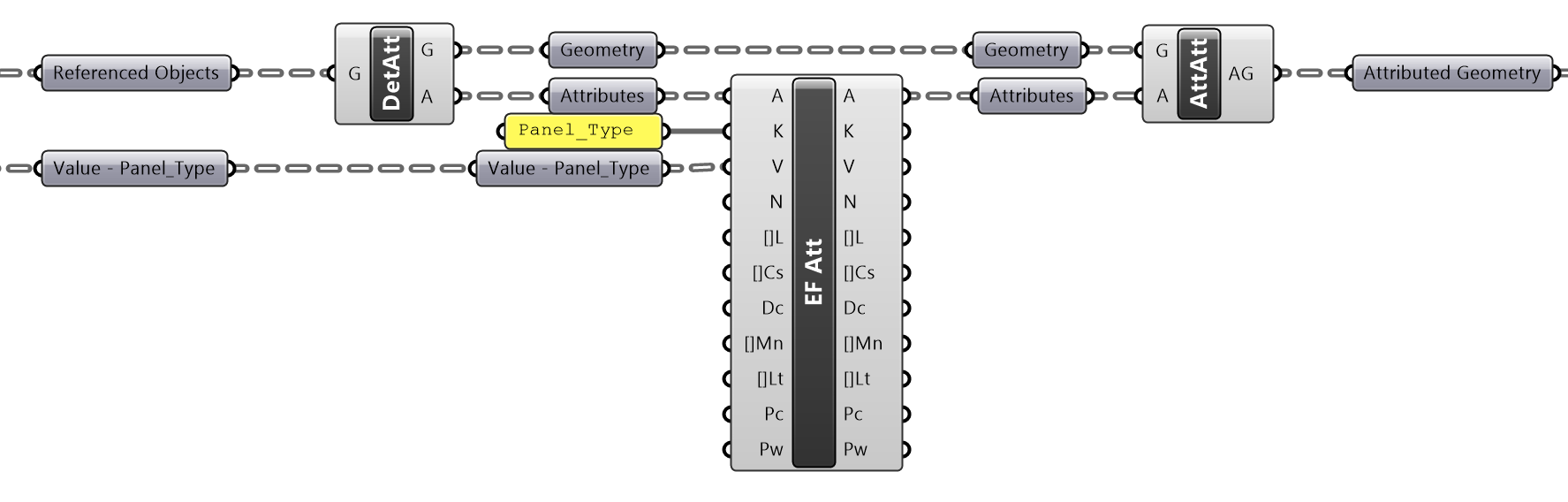 Example of Detaching and Attaching Attributes to geometry
Defining Layers
The Layer input for the eleFront Layer component has a few more features than the regular, text-based input. While the user may simply write the name of a layer or use the Value List component to choose an existing layer, the eleFront Layer component will allow a user to define the layer by also setting its visibility settings, colour, material name, linetype, print colour and print width.
In all cases, using two colons will create a sublayer, meaning the user is afforded full flexibility when creating layers.
An asterisk indicates that the layer was created by eleFront in the Grasshopper component, and has not yet been pushed to the active document.
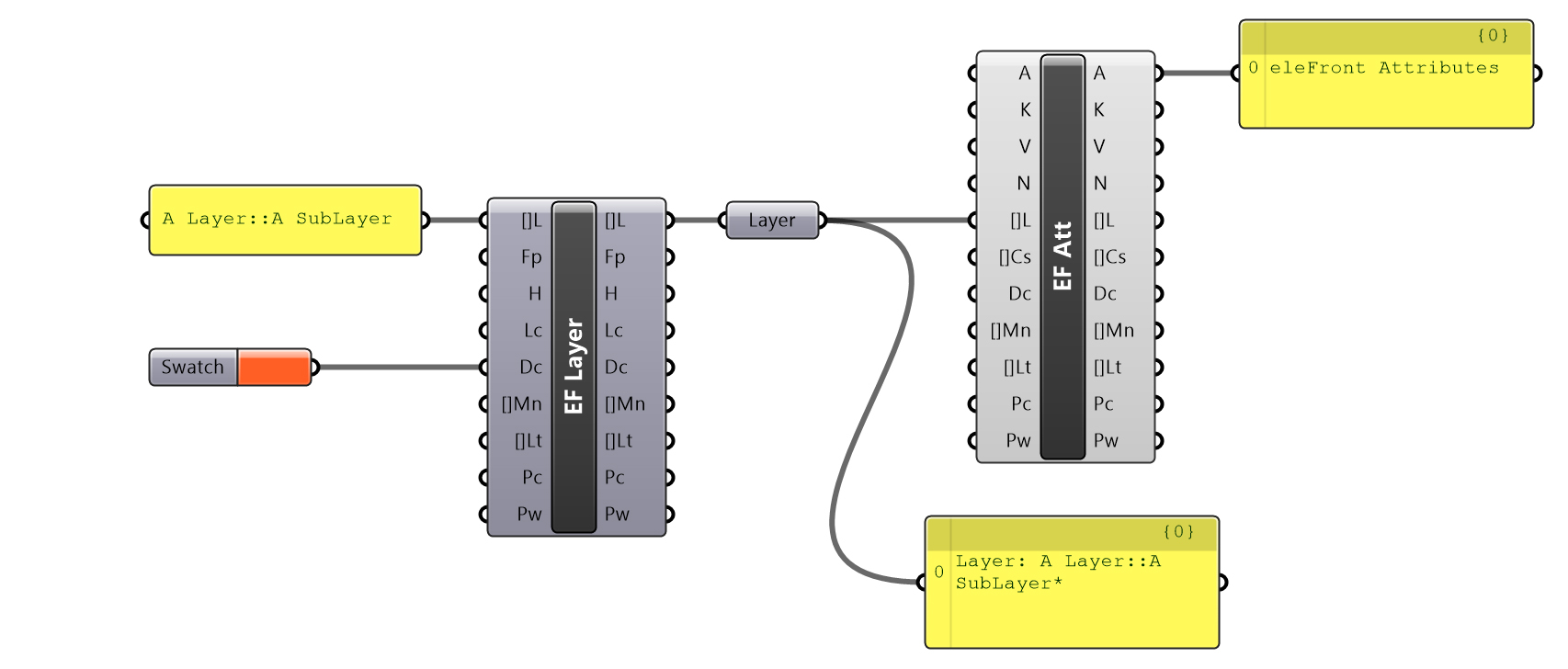 Example of defining a layer with
 eleFront Layer
Just like the eleFront Attributes component, the eleFront Layer component can be collapsed to show only the inputs and outputs that have wires connected. To do this, right click and select "Hide unconnected parameters".
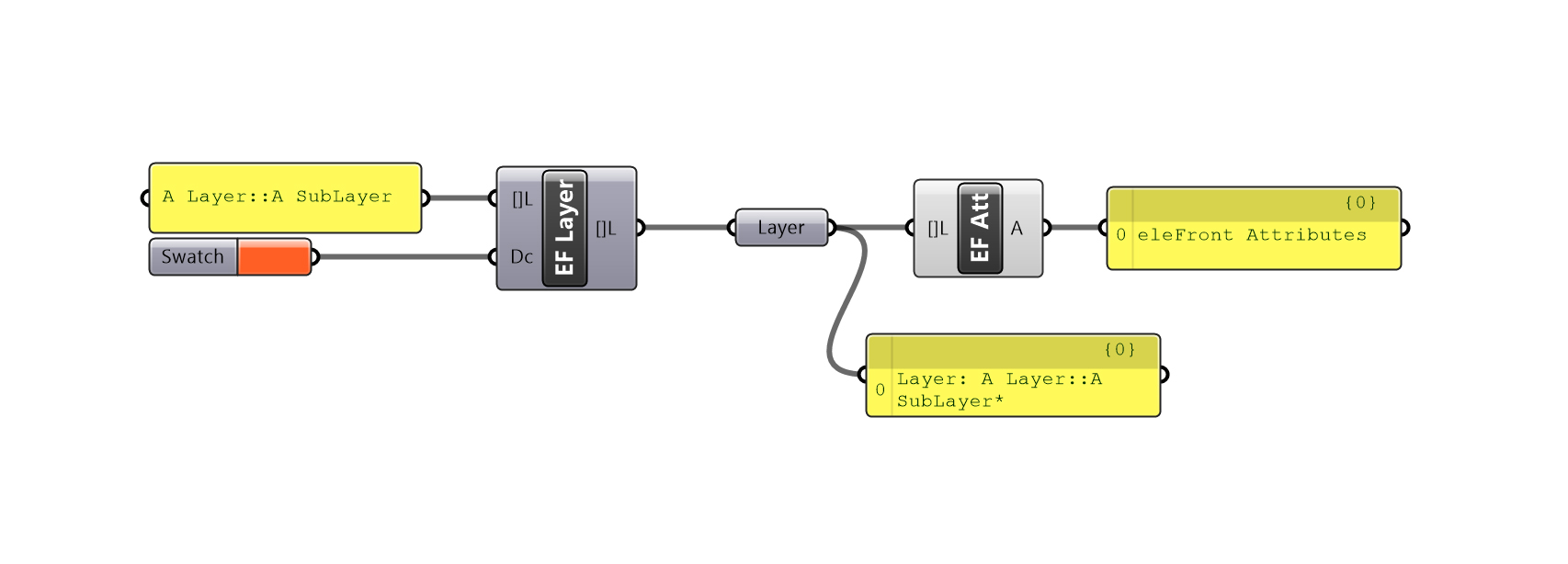 _Example of defining a layer with
 eleFront Layer, with unconnected parameters hidden.